
Account and Security
Open Account Settings from the account menu to edit your profile and how you sign in. The security settings on the same screen take about two minutes to set up, and they are worth that time.
The whole screen in 39 seconds:
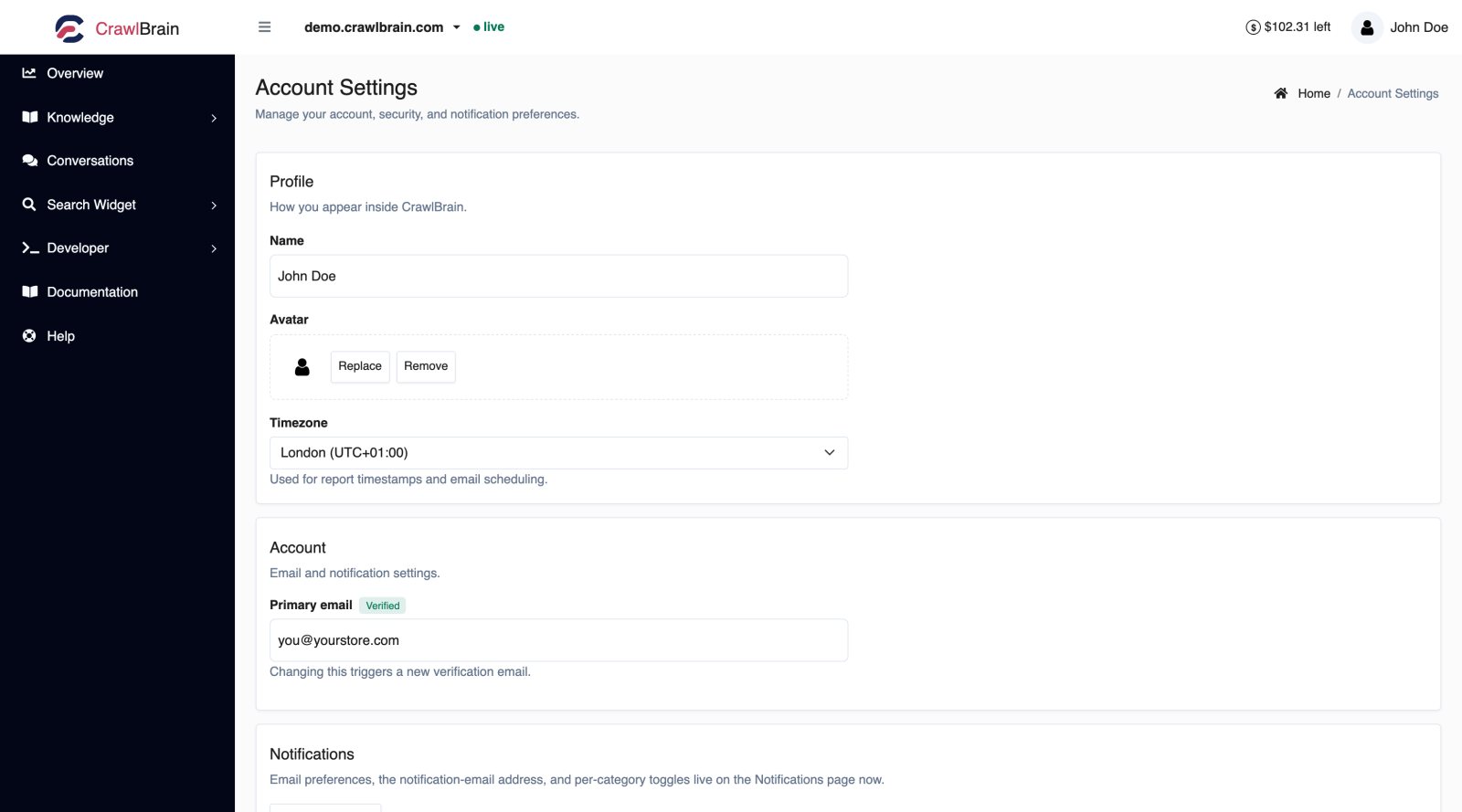
Profile
Name. How you appear inside CrawlBrain.
Avatar. Upload replaces it immediately, no save needed. Remove puts back the default.
Timezone. Used for report timestamps and email scheduling. Set it, or your weekly Monday report arrives on Sunday evening and every timestamp in the dashboard reads an hour or two off.
Primary email is your login address.
Changing it sends a verification email to the new address. The change only takes effect when you click the link in that email, and until then you keep logging in with the old address, even after you press save.
If the address is wrong and you have not clicked the link, just set it again.
To send product emails somewhere else without changing your login, use the notification email on Notifications instead.
Password
Change it from the modal on this page, which asks for your current password.
If you signed up with Google or GitHub you do not need a password. To also sign in with your email, click Set password and open the link we email you.
If you forgot it, use the reset link on the login page, which emails you a link that works for 60 minutes. On the login page, an email connected to Google shows a Continue with Google button.
Two-factor authentication
Turn it on. It takes two minutes and it is the single highest-value thing on this page.
- Open the two-factor section and start setup.
- Scan the QR code with any authenticator app: 1Password, Authy, Google Authenticator, whatever you already use.
- Enter the six-digit code to confirm.
- Save your recovery codes somewhere that is not your phone.
Step 4 is the one people skip. Recovery codes are how you get back in when the phone with your authenticator app is lost or wiped, so put them in your password manager now.
Each sign-in after setup asks for a code from your app.
Trusted devices
When you complete a two-factor challenge you can tick Trust this device, and that browser then skips the code on future logins. Tick it on your own machines only, never on a shared or public one.
The Security section lists every trusted device, and you can revoke one or all of them.
Revoke all when a laptop is lost or stolen. Do the same after signing in on a shared machine or before handing a device on to someone else: the next login from that browser asks for a code again.
Signing in with Google or GitHub
The login page supports both, and an account that uses one has no password to manage.
If you signed up with email and want to switch, or the other way round, contact support rather than making a second account. A second account comes with its own index and its own bill.
Connected tools
Tools connected through OAuth hold an API key for your account, and each one is listed on Developer → API Keys with its last-used date.
Revoke a key to disconnect the tool instantly. See Authentication.
Deleting your account
The delete option is at the bottom of Account Settings. Deleting removes your account, your websites, your indexed content, your snippets, and your conversation history. It cannot be undone.
Turn Pro off first if you have it, from Credits. Deleting the account does not cancel the billing relationship on its own.
If you are leaving because something did not work, tell us first. Most of the reasons people leave are configuration problems with a two-minute fix.
A sensible security setup
- [ ] Two-factor on
- [ ] Recovery codes in your password manager
- [ ] Timezone correct
- [ ] Trusted devices reviewed, anything unfamiliar revoked
- [ ] API keys named after their consumer, unused ones revoked
- [ ] Notification email pointing somewhere a human reads