
Google Tag Manager
Google Tag Manager can inject the widget when you have no access to your site's code: you paste the CrawlBrain script into a Custom HTML tag and GTM adds it to your pages.
The whole GTM setup is in this 53-second video:
Add the tag
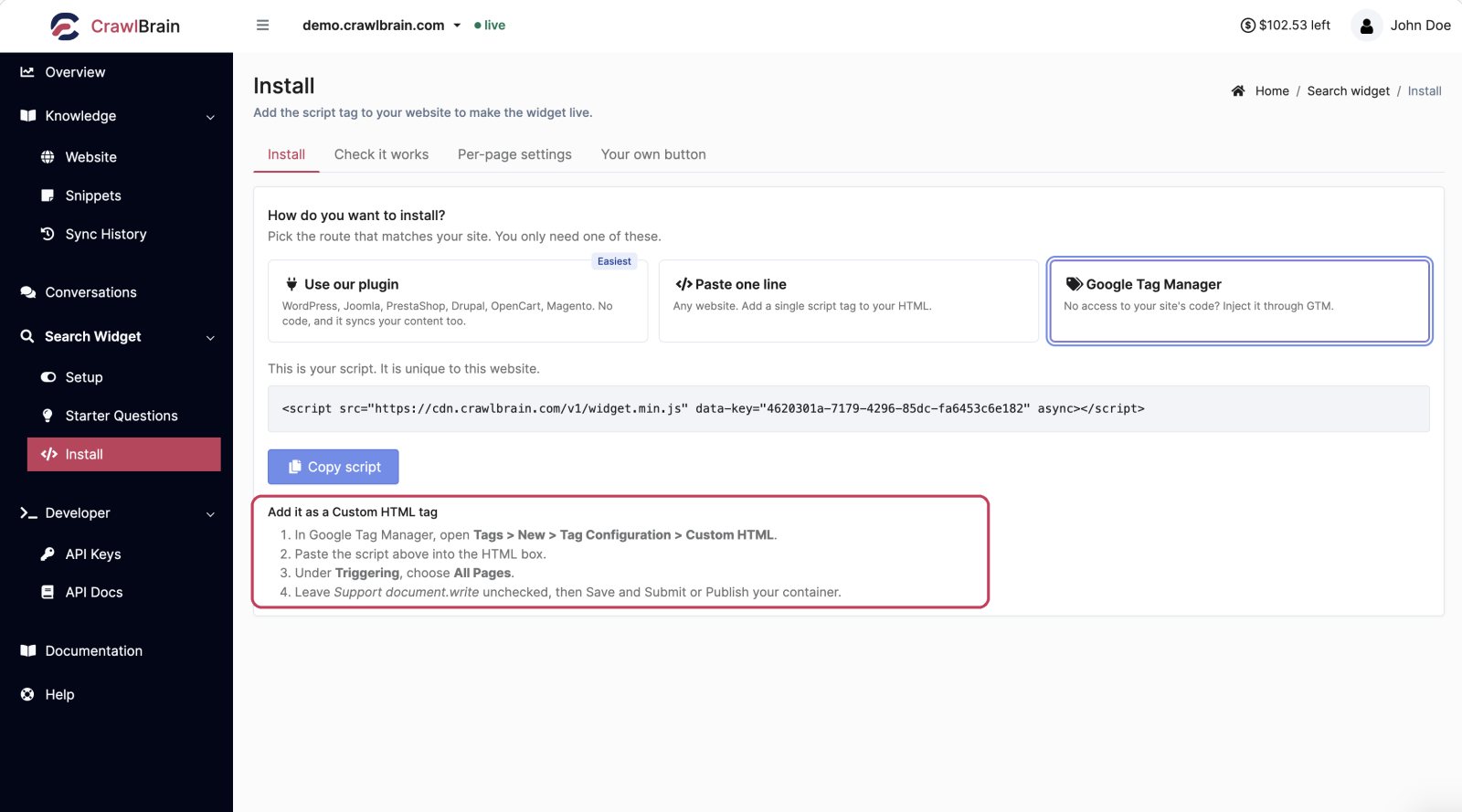

- Copy your script tag from Search Widget → Install.
- In Google Tag Manager, go to Tags → New → Tag Configuration → Custom HTML.
- Paste the script into the HTML box.
- Under Triggering, choose All Pages.
- Leave Support document.write unchecked.
- Save, then Submit and publish your container.
<script src="https://cdn.crawlbrain.com/v1/widget.min.js" data-key="YOUR-AGENT-KEY" async></script>
Once the container is published, click Check installation in CrawlBrain.
The four things that go wrong
You saved but did not publish. GTM changes live in a workspace until you submit a version. Check the container has a published version newer than your change.
The trigger is not All Pages. A page-specific trigger means the widget only exists on those pages, and every test you run on a different page looks like a broken install.
Support document.write is checked. Leave it off. The widget loads asynchronously and does not need it.
Consent mode is blocking it. If your GTM container is behind a consent manager, the tag may not fire until a visitor accepts. Decide deliberately whether search belongs behind consent. CrawlBrain does not need marketing cookies to answer a question, so most sites classify it as functional rather than marketing.
Timing
GTM injects the script after the page has started rendering, which is later than a script tag in your own <head>.
This makes no difference to the Floating button placement. It can matter for the two search-bar placements on sites where the search input is itself rendered late by JavaScript, and if the widget intermittently fails to attach to your search bar through GTM, that is the cause.
You have two ways round it:
- Put the script in your site's own
<head>instead, if you can get to it. - Switch to the Floating button placement, which does not depend on another element existing.
Verifying with GTM Preview
Use Preview in GTM, load your site, and confirm the CrawlBrain tag shows as fired on the page you are looking at. A tag that did not fire means the trigger is wrong. If it fired and the widget is still not visible, the trigger is fine and the problem is the placement selector.
That split saves a lot of guessing. See Troubleshooting.