
Appearance
The Appearance section of Search Widget → Setup controls how the widget looks, so you can make it belong on your site.
The video below goes through the section in 38 seconds:
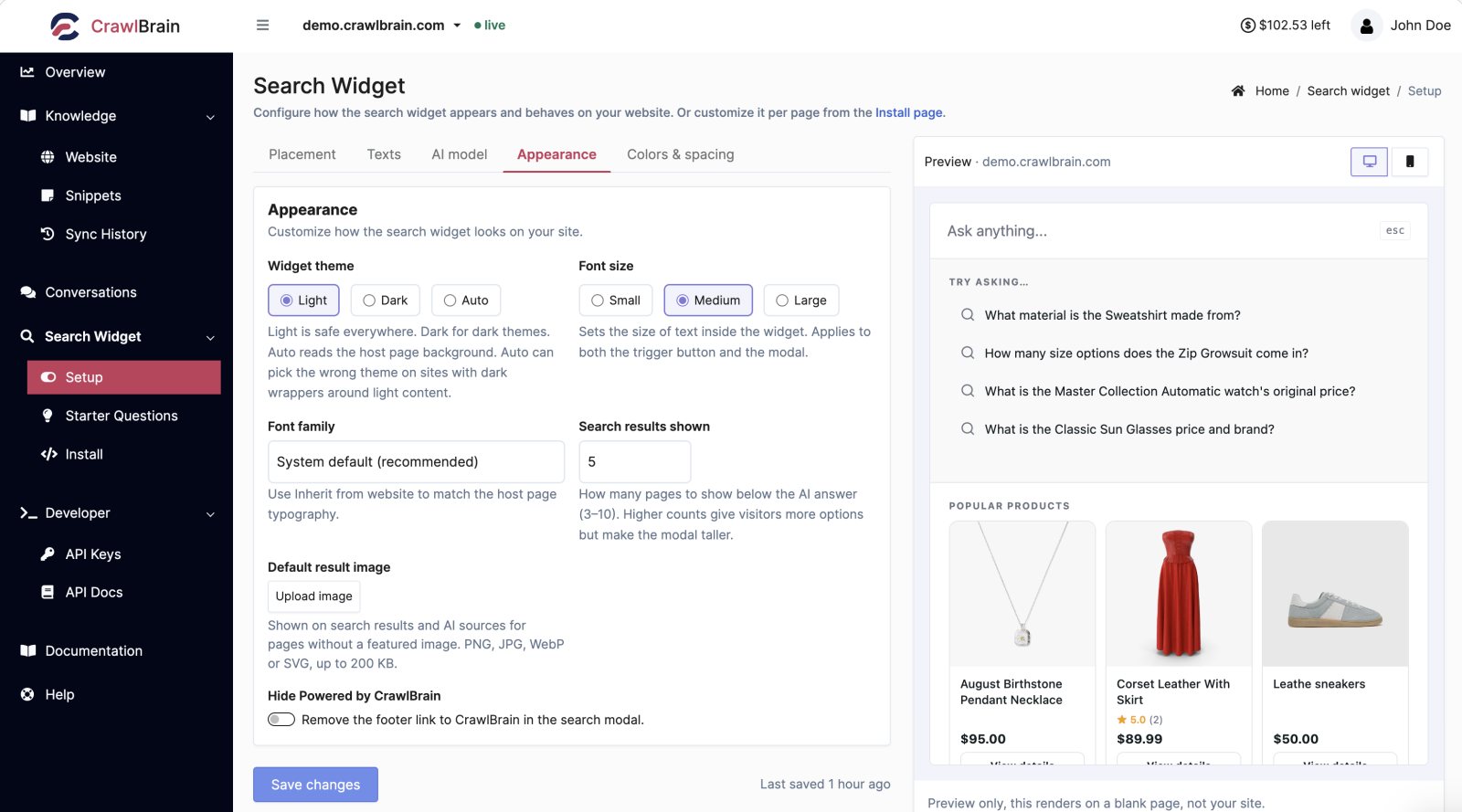
Every change previews on the right instantly. Nothing ships until you click Save changes.
Widget theme
| Option | Behaviour |
|---|---|
| Light | Light palette everywhere. Safe on any site |
| Dark | Dark palette everywhere. For dark themes |
| Auto | Reads the host page background and picks |
Light is the default and the safe choice.
Auto sounds like the obvious pick and often is not. It reads the page background, so a light content area inside a dark wrapper can make it choose wrong. If Auto looks off on some pages, set Light or Dark explicitly and use data-theme to override it on the pages that differ.
Font size
Three sizes are available, from Small through Medium to Large, and the one you pick applies to both the trigger button and the modal.
Medium suits most sites. Go Large on documentation and knowledge bases, where people read rather than scan.
Font family
| Option | When |
|---|---|
| System default | Recommended. Fast, familiar, no extra load |
| Sans-serif, Serif, Monospace, Rounded | A specific look |
| Inherit from website | Match your own typography exactly |
Inherit from website makes the widget adopt the host page's font. It is the right answer when your brand typography matters, with one caveat: if your font loads late, the widget will briefly render in the fallback.
Search results shown
This sets how many pages appear below the AI answer, anywhere between 3 and 10, with 10 as the default.
Higher gives visitors more to choose from and makes the modal taller. On mobile-heavy sites, 5 keeps the answer and the top results on one screen.
Colors
Colors are set in the same section, and each one can be overridden per page:
Match my site reads the colors from your own pages. It takes 35 seconds on video:
| Setting | Applies to |
|---|---|
| Brand color | Accent on the AI answer block |
| Link color | Links inside answers |
| Text color | Body text in the modal |
| Background color | The whole search box. Defaults to white |
| Button color | Trigger button background |
| Button text color | Trigger button label |
Use hex values, #RRGGBB.
Take the brand color from your primary brand color and pick a link color dark enough to read on white, then leave text and background alone unless you have a reason to change them.
Contrast is yours to get right. A pale brand color on white will pass the preview and fail on a real screen in daylight.
Trigger button
The trigger button shows only on the Add to search bar and Floating button placements. The Replace search bar placement hides it, because your own input is the trigger.
| Setting | Values |
|---|---|
| Button text | Any string, up to 60 characters |
| Button icon | none, sparkle, search, chat, lightning |
| Corner radius | Pixels, or any CSS length |
| Padding | Vertical and horizontal |
Short labels such as Ask AI or Need help? work best, because anything longer wraps on mobile.
Hide Powered by CrawlBrain
This switch removes the footer link inside the search modal. It needs Pro, and without Pro the link stays.
Advanced settings
These sit behind Show advanced settings at the bottom. They are rarely needed, so leave them alone unless something specific is wrong.
Per-page overrides
Every appearance setting here is the default for the website. Any of them can be overridden on a single page or a single site by adding a data-* attribute to the script tag:
<script
    src="https://cdn.crawlbrain.com/v1/widget.min.js"
    data-key="YOUR-AGENT-KEY"
    data-theme="dark"
    data-brand-color="#0F172A"
    data-font-size="large"
    async
></script>
That is how you run one dark-themed docs section and one light marketing site from a single account. The full list is in Per-Page Overrides.
Getting it right on your real site
The preview draws on a blank page. It cannot show you how the trigger sits inside your own header, whether it collides with your cart icon, or how it behaves at 375 pixels wide.
Install the browser extension. It mounts the widget on your actual site with the same controls in a popup, re-rendering as you change them, and saves the result back to your account when you are happy.
Ten minutes with the extension beats an hour of save-and-refresh.