
Adding a Website
A website is one domain that CrawlBrain reads. Each one gets its own index and search widget, and the questions visitors ask on it go into a conversation log of its own.
The whole setup is also on video, and it takes 41 seconds:
Add your first site
New accounts land straight on this screen. To add another one later, go to Knowledge → Website and click New Website.
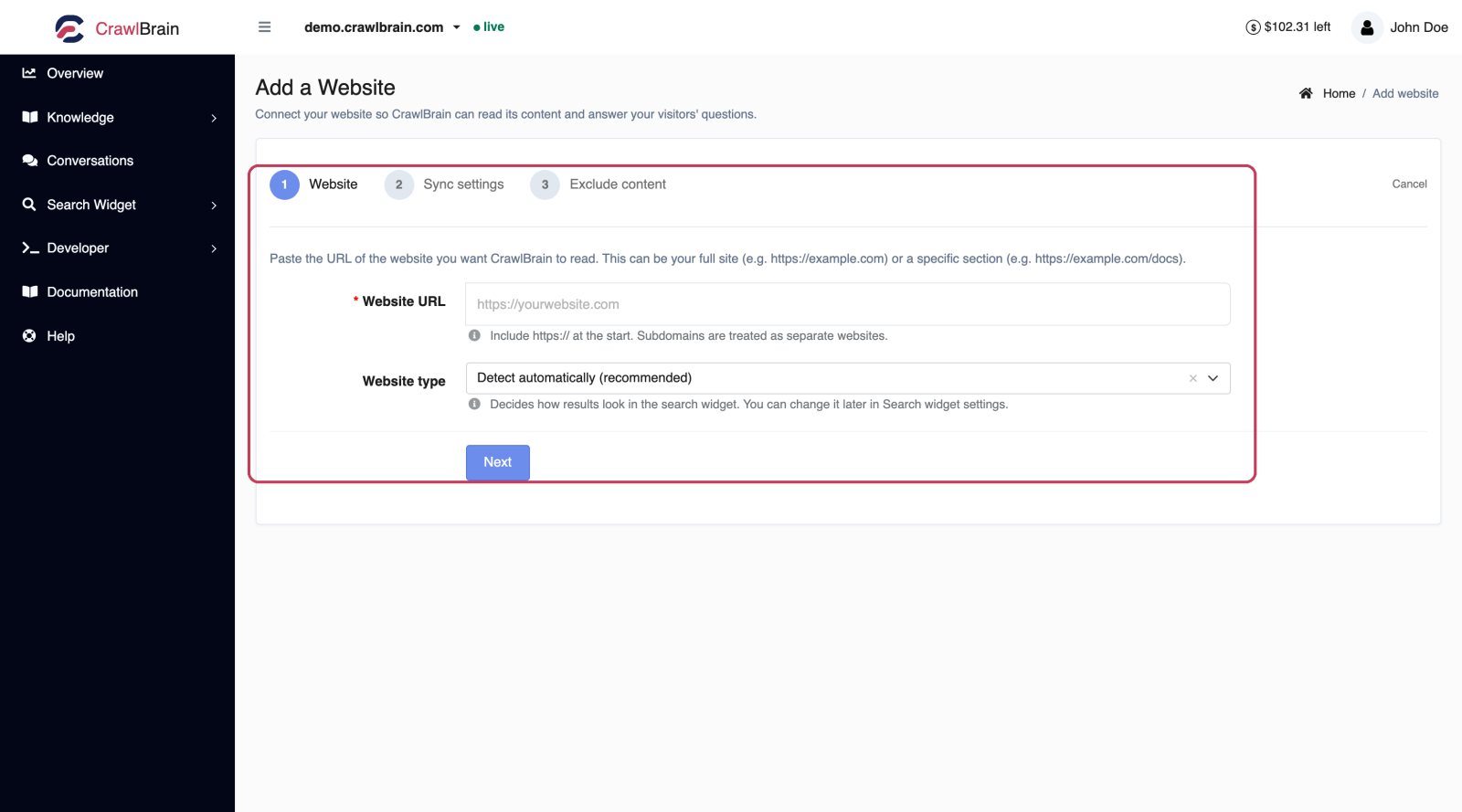
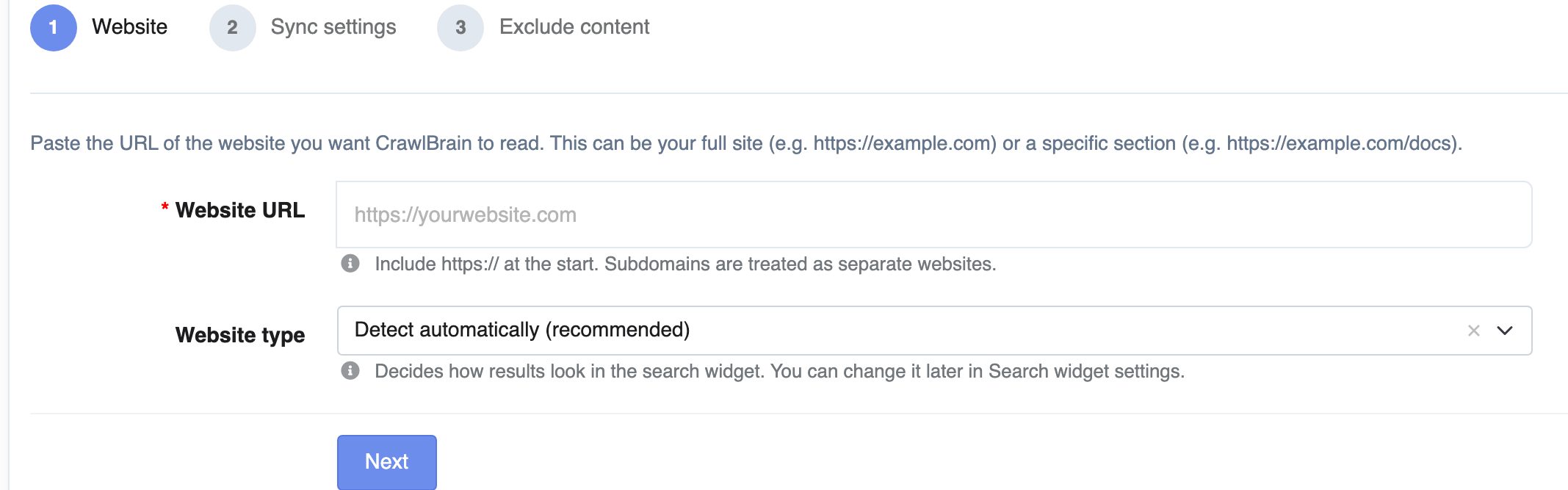
The wizard has three steps. Only the first one is required reading.
Step 1: Your website
Paste the URL. This can be your whole site (https://example.com) or one section of it (https://example.com/docs), which is useful when you only want the knowledge base indexed and not the marketing pages.
Two rules:
- Include
https://at the start. - Subdomains are separate websites.
example.comandwww.example.comare different hosts to a crawler, and so areshop.example.comandhelp.example.com. Each one is its own website and each one counts against your website ceiling.
CrawlBrain checks the URL is reachable before it lets you continue. If the check fails, see Troubleshooting.
Step 2: Sync settings
This step sets where CrawlBrain finds your pages (the sitemap) and how it fetches them: the crawl speed, and whether JavaScript is rendered. The defaults work for most sites, so you can click through now and come back later if you need to. Everything on this step is explained in Sync Settings.
Step 3: Exclude content
This step lists the paths and page regions you do not want indexed. The defaults already strip navigation plus the header and footer from every page, so your menu text does not end up in every answer.
Finish the wizard and the first crawl starts immediately.
Which URL should you point it at
| You want | Point CrawlBrain at |
|---|---|
| The whole site answered | https://example.com |
| Only the help centre | https://example.com/kb |
| Only the store | https://shop.example.com |
| A site with a separate docs subdomain | Two websites, one each |
Narrower is usually better. If your visitors' questions are all support questions, indexing the marketing site adds noise and gives the AI more chances to answer from the wrong page.
What happens during the first crawl
CrawlBrain finds your sitemap and queues every URL listed in it. As it works through the queue it also follows links it finds on your pages, staying on the same host.
Each page is fetched and cleaned, then stored and embedded for search. You can watch the URLs arrive in real time under Knowledge → Sync History.
Most sites finish in 2 to 10 minutes. A site with many pages on a slow server takes longer, and so does a low crawl speed.
While a sync is running, the website's status shows as syncing and the Sync now button is disabled. That is deliberate: two crawls of the same site at once would just fight each other.
The website list
Knowledge → Website shows every site on your account.
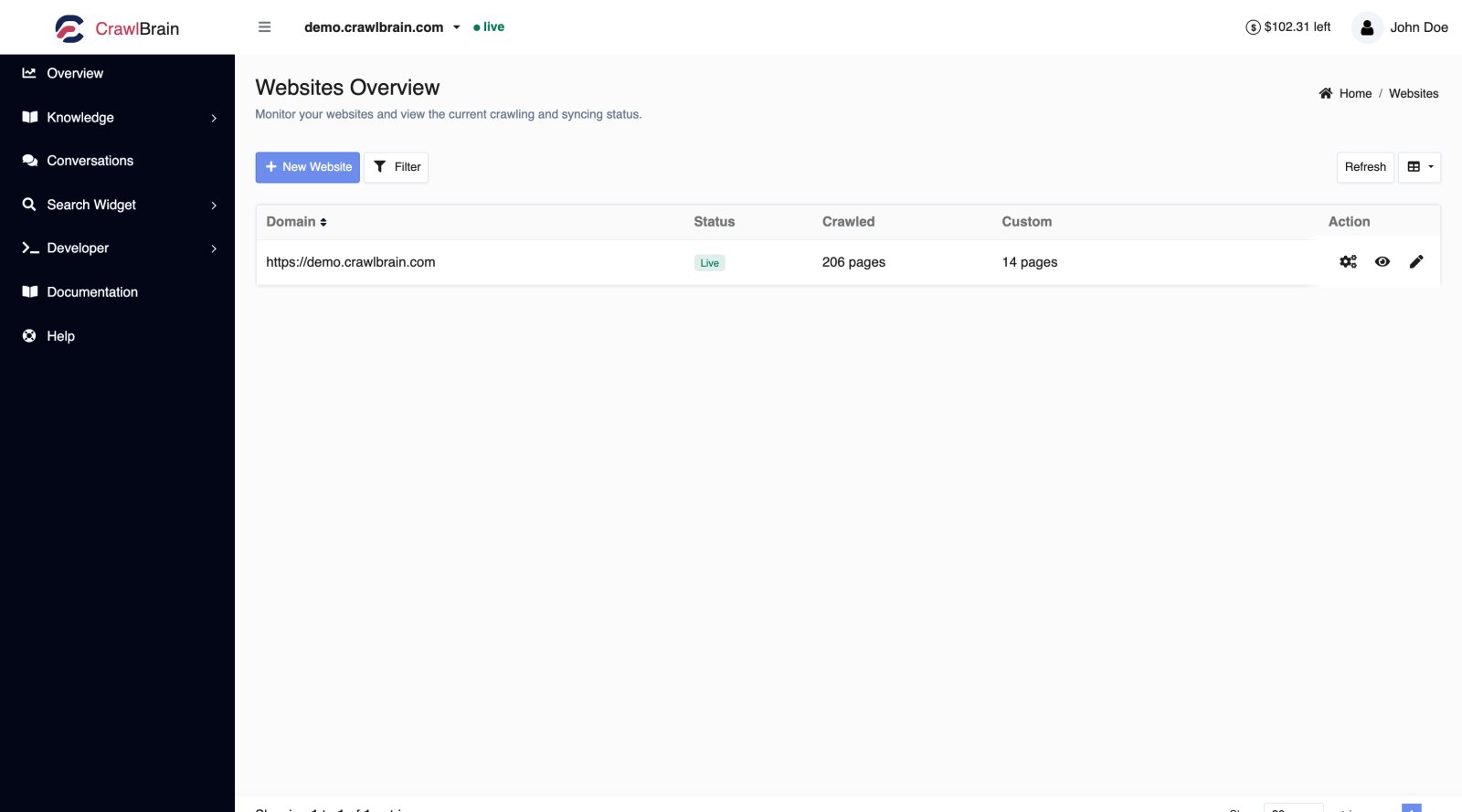
| Column | Meaning |
|---|---|
| Domain | The site, plus its display name if you set one |
| Status | Live, or syncing |
| Crawled | Pages found and indexed by the crawler |
| Custom | Snippets you added by hand |
The three icons on the right are, in order, sync settings, preview, and edit.
Changing a site's name, its sync email and its content gap alerts takes 51 seconds on video:
Switching between websites
Everything in the dashboard is scoped to one website at a time, and the selector in the top bar is what sets it.
Pick a site there and every screen follows it, from pages and snippets to conversations and the widget settings. If a screen looks empty and you know the site has data, check the selector first.
How many websites you get
| Websites | Pages per website | |
|---|---|---|
| Free | 1 | 1,000 |
| Pro | 3 | 50,000 |
Every site on the account draws on the same credit balance, so a second or third domain costs nothing by itself. What you pay depends on how much crawling and answering actually happens.
The full limits are on Credits and Limits.
Deleting a website
Open Knowledge → Website and choose delete from the row menu.
Deletion is soft for seven days. During that window the site stops answering immediately, but the data is still recoverable if you ask support. After seven days the page index and vector data are purged, along with the snippets and starter questions.
Deleting a website does not free up its page count until the purge runs. If you deleted a site to make room for another one under a website cap, the slot frees up right away, but the stored pages take a few days to clear.