
Importing Documents
Bulk-add snippets from a document or a spreadsheet instead of typing them one at a time.
Open Knowledge → Snippets and click Import.
An import from start to finish, in 44 seconds:
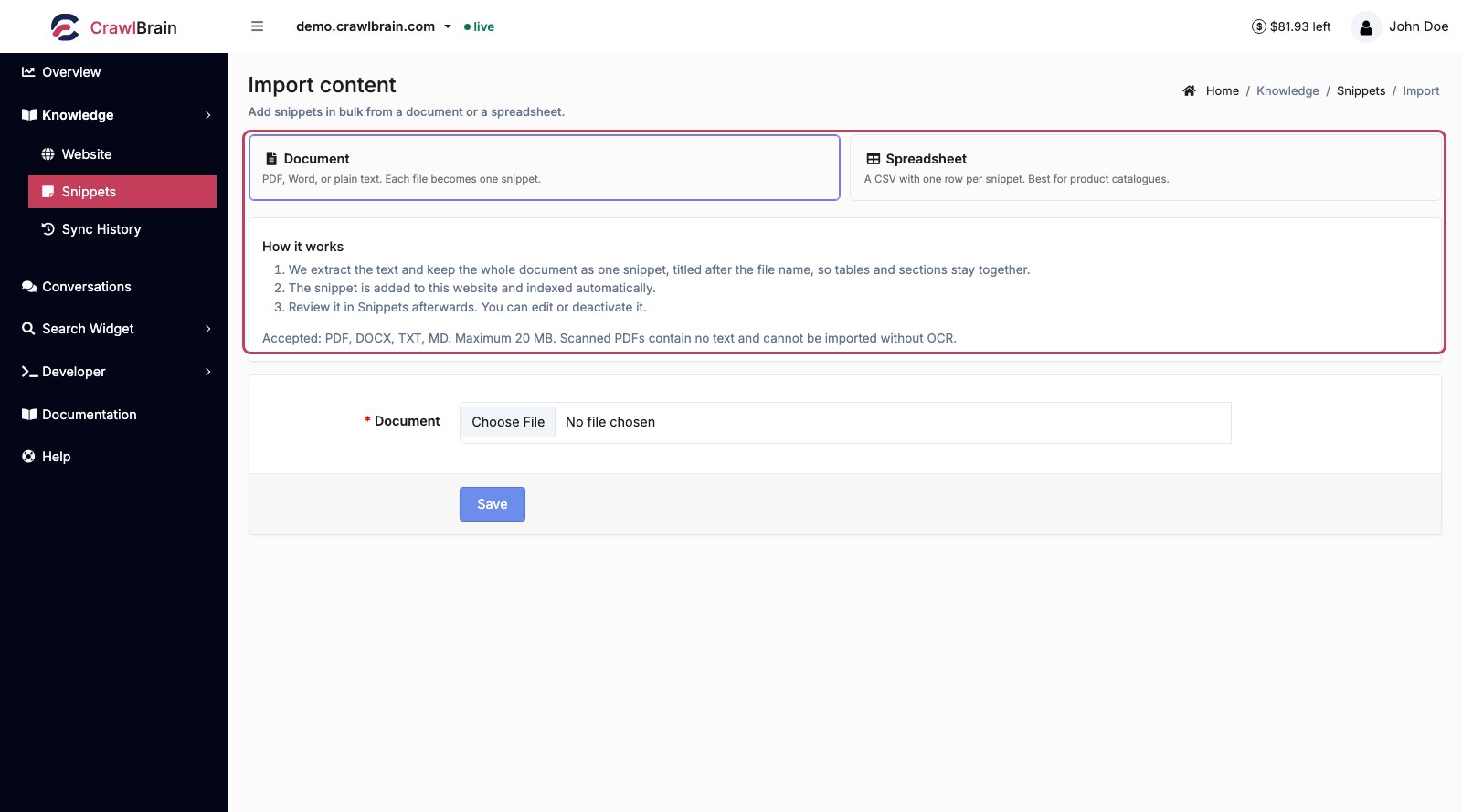

Two routes
Document. Upload a PDF, Word or plain text file, and CrawlBrain extracts the text and saves the whole file as one snippet, titled after the file name.
Spreadsheet. Upload a CSV with one row per snippet. This route suits anything already kept in a table, such as a product catalogue or an FAQ list.
How a document is imported
- The text is extracted from the file.
- The whole document becomes one snippet. Its title is the file name without the extension, with dashes and underscores turned into spaces, so
returns_policy-2026.pdfbecomesreturns policy 2026. - The snippet is added to the current website and indexed automatically.
- It appears in Snippets, where you can edit or deactivate it.
The file stays whole on purpose. Splitting at headings cut tables apart at the boundaries and turned one datasheet into a row of snippets with near-identical titles, while indexing already breaks a long snippet into passages of about 400 words, so a 40-page manual can still answer a narrow question from the right passage.
Name the file before you upload it, because a title like Shipping and returns policy is easier to find in Snippets than final_v3_export. If one file mixes unrelated topics, split it into one file per topic and import each.
Accepted files
The importer accepts PDF, DOCX, TXT and MD files up to 20 MB.
Scanned PDFs contain images of text rather than text, so they cannot be imported without OCR. Try selecting a few words in the PDF with your mouse: if that works, the file will import, and if it does not, run it through OCR first.
Spreadsheet import
Each row becomes one snippet. Give the file a header row so the columns can be mapped.
title,content,language
"Do you ship to Canada?","Yes. Standard delivery is 5 to 8 business days, free over $80.",en
"What is your return window?","30 days from delivery, free with the original receipt.",en
"Is the fabric machine washable?","Yes, cold wash at 30C. Do not tumble dry.",en
The same rule as hand-written snippets applies: write the title as the question a visitor would ask. Do you ship to Canada? retrieves better than Shipping.
For a product catalogue, open Show product-specific columns on the import screen. It lists Price, Sale, Stock and Categories, plus up to five attribute pairs, from Attribute 1 name / Attribute 1 value to Attribute 5 name / Attribute 5 value.
Good candidates
- An internal FAQ document nobody ever published
- Product spec sheets
- A policy handbook
- Training material for your support team
- The knowledge base of a tool you are migrating away from
After importing
Everything lands in Snippets with the language you picked and AI active.
Two checks are worth doing straight away:
- Skim the titles. A document is titled after its file, and a CSV row after its title column, so rename anything that does not say what it holds.
- Test three questions. Use Search Widget → Install → Test search and ask three things the document should now answer. If they come back right, the import worked.
If an answer comes from the wrong part of a long document, delete that snippet, split the file by topic and import the parts. It is faster than editing one large snippet by hand.
Programmatic imports
With Pro you can push snippets through the API instead, which is the better path for anything that changes on a schedule.
See Pages and Snippets.