
JavaScript API
The JavaScript API lets you open and close the widget from your own code once the script has loaded.
Opening the widget from a button you already have, in 47 seconds:
Opening and closing
window.openWidget();
window.closeWidget();
Both are available after the widget script has loaded. With async on the script tag, that is not guaranteed at the moment your own inline script runs, so guard the call:
document.getElementById('help').addEventListener('click', function () {
  if (typeof window.openWidget === 'function') {
    window.openWidget();
  }
});
Inside an event handler this is almost always safe: the user has to see the page before they can click, and the widget will have loaded by then.
Opening from your own button
The Install page has this snippet ready under Your own button, with your key filled in.
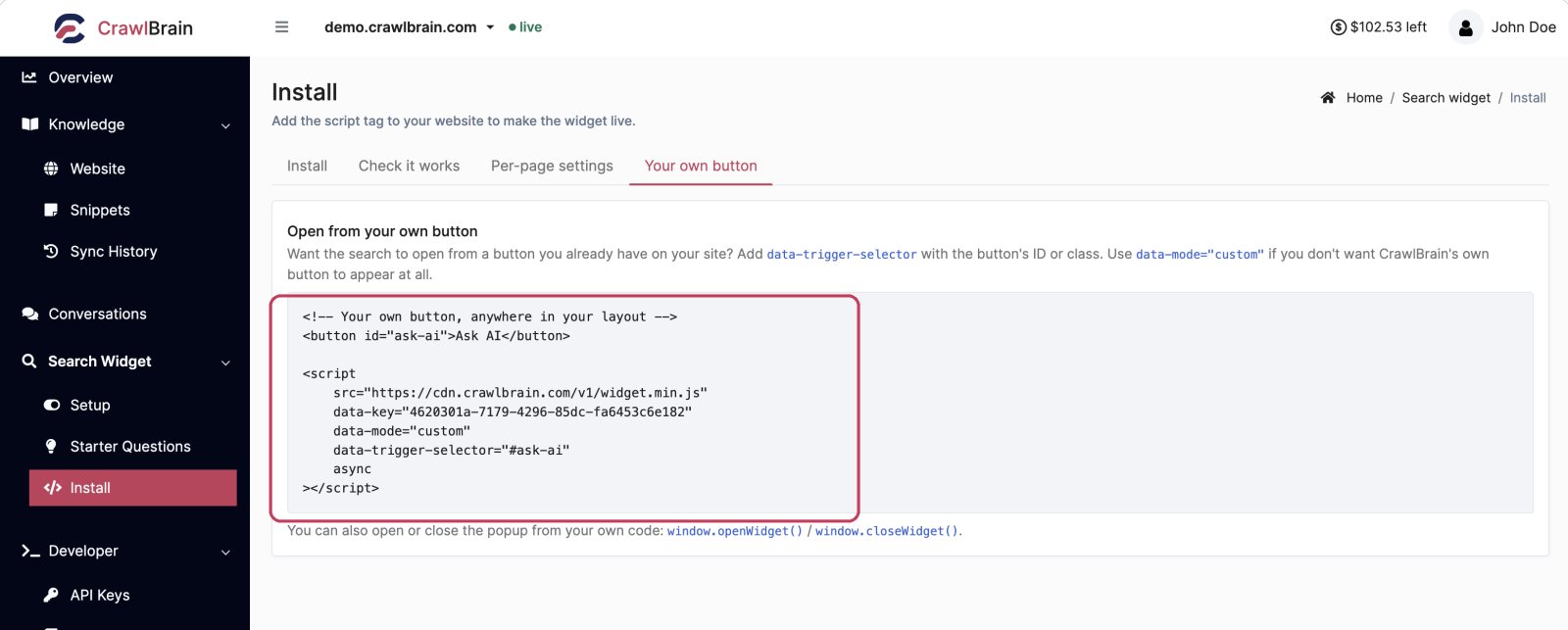
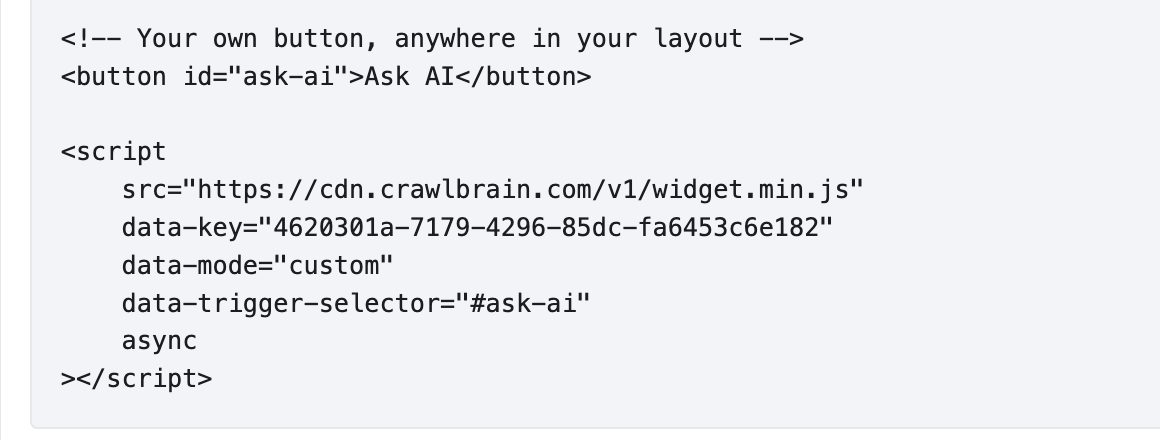
You usually do not need JavaScript for this. data-trigger-selector does it declaratively:
<button id="ask-ai">Ask AI</button>

<script
    src="https://cdn.crawlbrain.com/v1/widget.min.js"
    data-key="YOUR-AGENT-KEY"
    data-mode="custom"
    data-trigger-selector="#ask-ai"
    async
></script>
data-mode="custom" suppresses CrawlBrain's own trigger so only your button opens the search. Comma-separate the selector for several elements.
Reach for openWidget() when the trigger is not a click on a static element: a keyboard shortcut, a timer, a step in a checkout flow, an empty state in your own search results.
Patterns
Keyboard shortcut
document.addEventListener('keydown', function (e) {
  if ((e.metaKey || e.ctrlKey) && e.key === 'k') {
    e.preventDefault();
    window.openWidget && window.openWidget();
  }
});
Rescue your own zero-results page
This is the highest-value integration on this page. When your existing search returns nothing, the code below adds a button to the empty results that opens the AI search, so the visitor has somewhere to go next.
if (document.querySelector('.search-results').children.length === 0) {
  document.querySelector('.no-results').insertAdjacentHTML('beforeend',
    '<button id="try-ai">Ask AI instead</button>');

  document.getElementById('try-ai').addEventListener('click', function () {
    window.openWidget && window.openWidget();
  });
}
Open from a link
<a href="#" onclick="window.openWidget(); return false;">Ask a question</a>
Turning the widget off on some pages
Do this on the server with an attribute on the script tag, not with JavaScript:
<script
    src="https://cdn.crawlbrain.com/v1/widget.min.js"
    data-key="YOUR-AGENT-KEY"
    data-mode="disabled"
    async
></script>
The usual shape is one script tag in your global layout, with your template adding data-mode="disabled" on checkout, account, and admin pages.
Everything else is an attribute
Placement, colors, fonts, spacing, texts, and result count are set as data-* attributes rather than through JavaScript. That keeps configuration in your markup, where it is visible and cacheable, instead of hidden in a bundle.
The full list is in Per-Page Overrides.
Building your own interface entirely
To build your own UI, call the API directly with your agent key instead of scripting the widget: /agent/settings, /agent/search, /agent/query, /agent/feedback.
See Widget and Queries.
Loading notes
- Keep
async. The widget never blocks your render, and it should stay that way. - Do not bundle the script. Combining a version-pinned CDN file into your own build defeats the pinning and can break the widget. Exclude it from any "combine JavaScript" option in your cache plugin.
- One tag per page. Two script tags mean two widgets fighting over the same search input.