
Quickstart
You can go from signup to AI-powered search in minutes, with no developer and nothing to upload. CrawlBrain learns from your website, and you can add documents such as PDFs or CSV files later if you want to.
There are four steps, and the two you do yourself take well under a minute together.
Signup and the first website take 1 minute 49 seconds on video:
Step 1: Enter your website URL (about 5 seconds)
Sign in and you land on Add a Website, which has one field and one button.
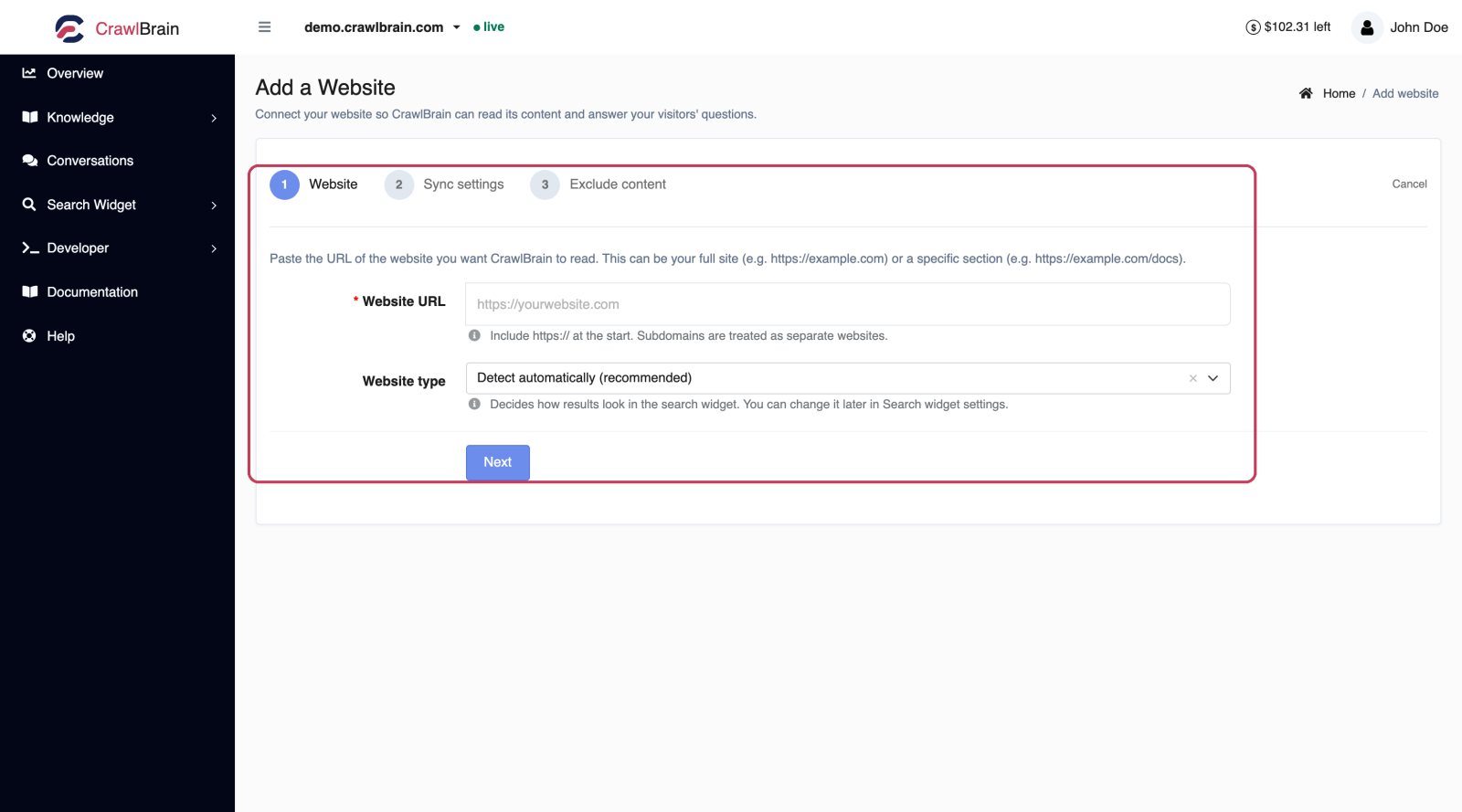 One field, one button. That is the entire onboarding.
Paste the address of the site you want CrawlBrain to learn from. This can be your whole site (https://example.com) or one section of it (https://example.com/docs).
Check two things before you click Next:
- Include
https://at the start. - Subdomains are separate websites.
shop.example.comandexample.comdo not share an index, and each one counts against your website ceiling.
Steps 2 and 3 of the wizard are sync settings and exclusions. The defaults are good, so click through them and tune later if you need to, from Sync Settings.
Step 2: CrawlBrain learns from your content (2 to 10 minutes)
CrawlBrain finds your sitemap and indexes every page it is allowed to read, from products and FAQs to documentation and blog posts. You choose what to include.
This takes 2 to 10 minutes for most sites, and longer for larger ones. You do not have to sit and watch it: the dashboard shows a live count, and if you want an email when it finishes, turn that on in Sync Settings.
CrawlBrain checks for updates every night on its own once the first crawl is done.
You can watch the URLs land in Knowledge → Sync History while it runs, with the HTTP status of each one.
Step 3: Add the search widget (about 30 seconds)
Go to Search Widget → Install.
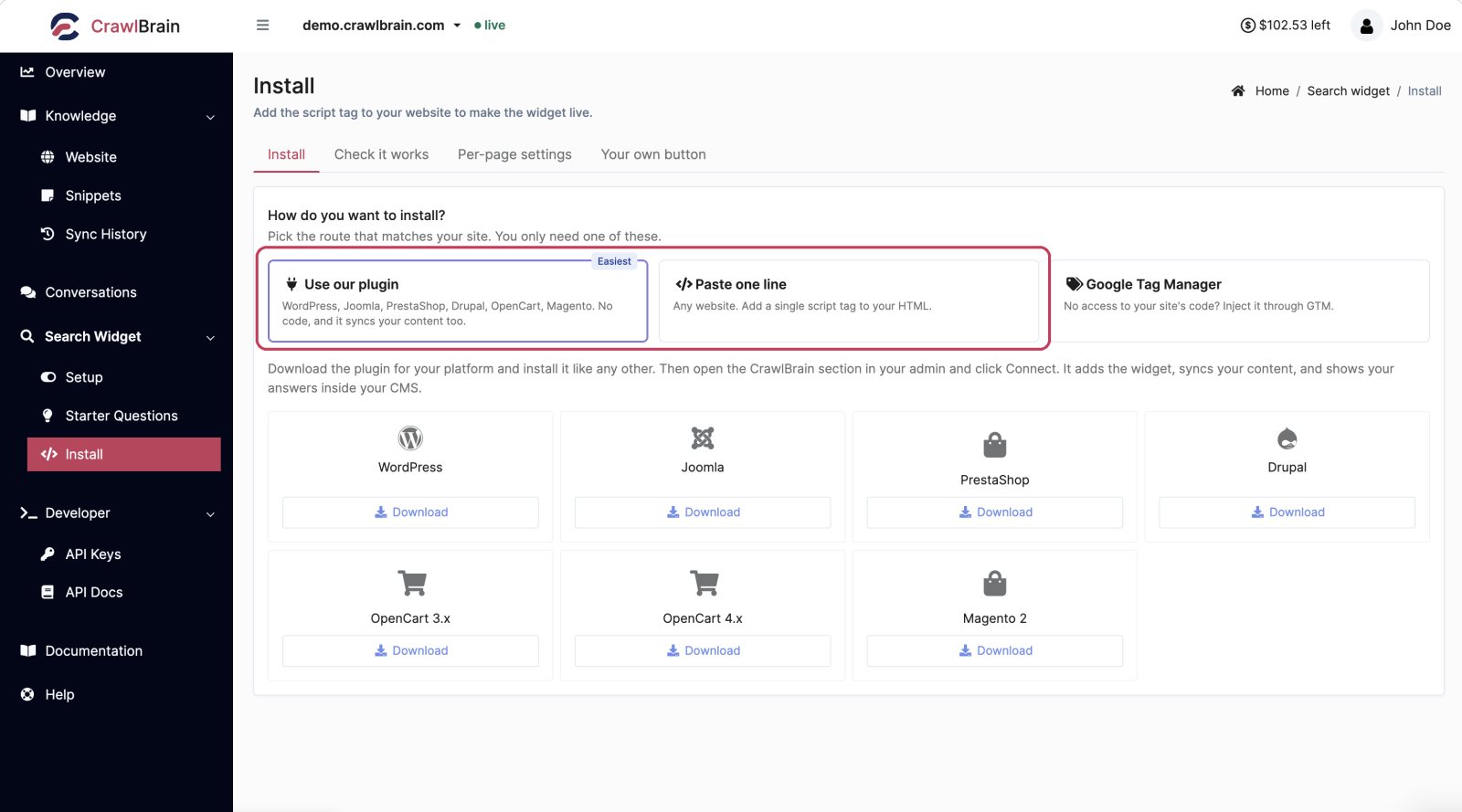 Three routes. You only need one of them.
Pick the route that matches your site:
- Use our plugin. WordPress, Joomla, PrestaShop, Drupal, OpenCart, Magento. No code, and it syncs your content too. This is the easiest path.
- Paste one line. Any website. A single script tag in your
<head>. - Google Tag Manager. No access to your site's code? Inject it through GTM.
The script tag looks like this, and it is unique to your website:
<script src="https://cdn.crawlbrain.com/v1/widget.min.js" data-key="YOUR-AGENT-KEY" async></script>
Press Check installation on the same page after adding the tag. CrawlBrain fetches your site and tells you whether it can see the script.
Full details per platform start at Choosing a Method.
Step 4: Start answering visitor questions
Your search bar is now an answer engine. Visitors ask in their own language and get source-backed answers in that language, and the widget interface itself is available in 20 languages.
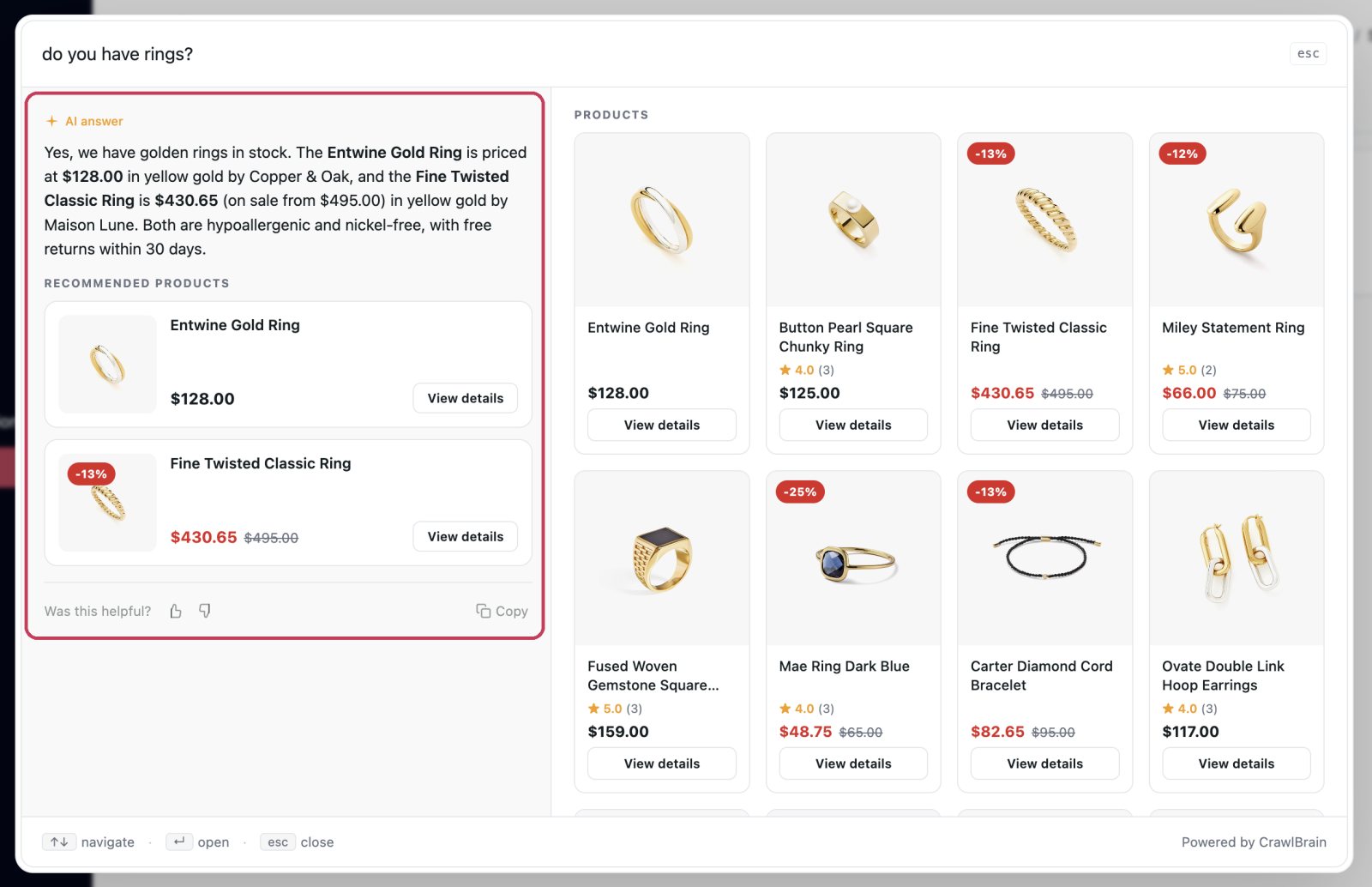 A real question, a real answer, and the pages it came from.
Every question is logged. Open Conversations to read them, and check the Unanswered tab for the questions your content could not cover. That tab is the highest-value screen in the product, because it is your visitors telling you what to write next in their own words.
What to do next
Once you are live, these four things make the biggest difference in the first week.
- Check the widget looks right. Appearance covers theme, font, and colors. It takes two minutes and the page previews itself as you edit.
- Fix your first content gaps. Open Conversations → Unanswered and turn the top few into Snippets. Each one is a question you now answer that you did not before.
- Set your starter questions. These are the suggestions visitors see before they type. CrawlBrain generates them from your content, and you can override them. See Starter Questions.
- Run the go-live checklist. Nine things, most of them already done.
If the widget is not showing up on your site, it is almost always one of four causes, and Troubleshooting lists all four with the fix for each.