
Texts and Languages
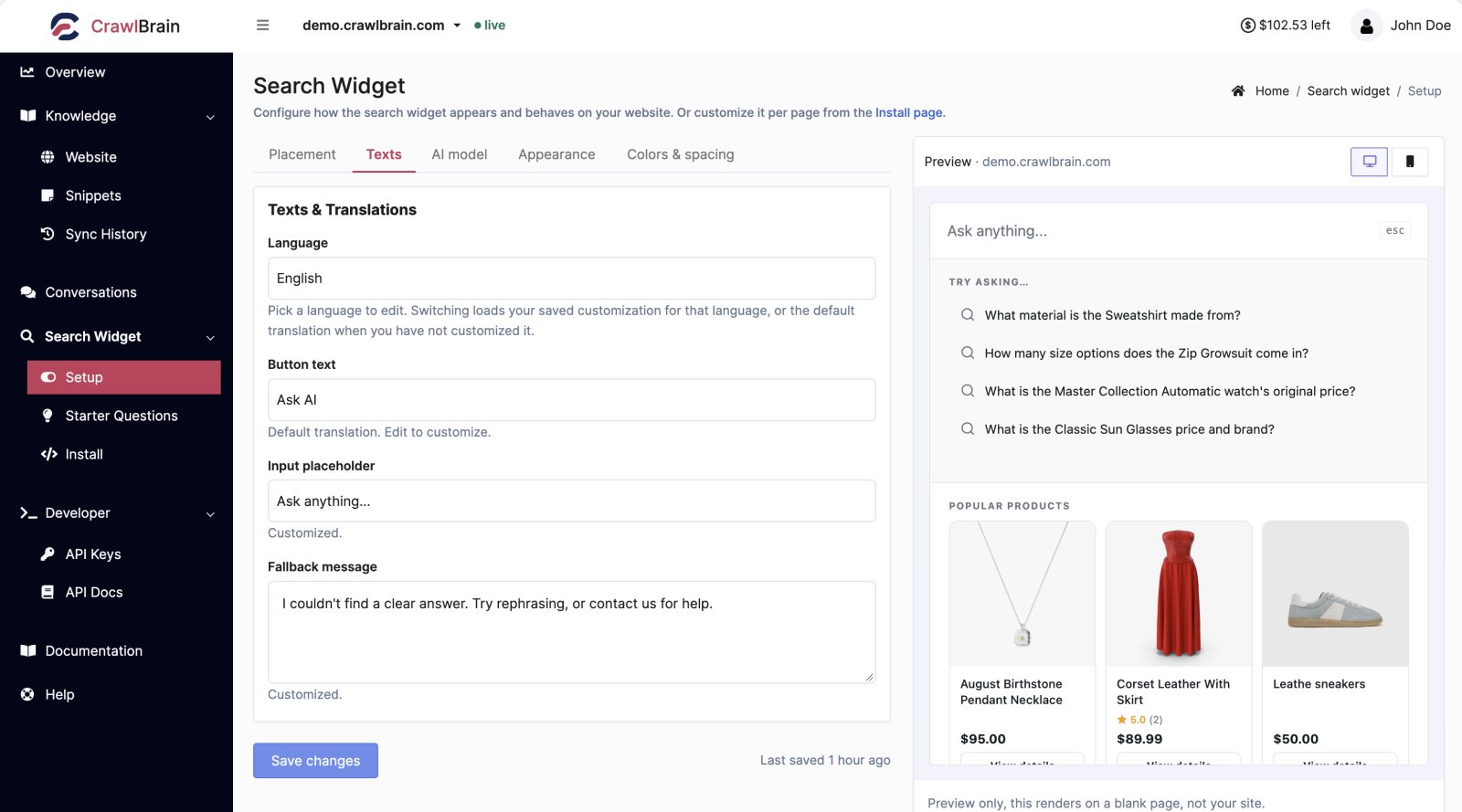
The Texts and Translations section of Search Widget → Setup controls every string a visitor sees, in every language you serve.
A visitor asks in Spanish and gets a Spanish answer from English pages, in this 52-second video:
Answering in the visitor's language
The answer language is the part you do not have to configure. A visitor who asks in Portuguese about your English content gets a Portuguese answer, sourced from your English pages, with those pages listed underneath.
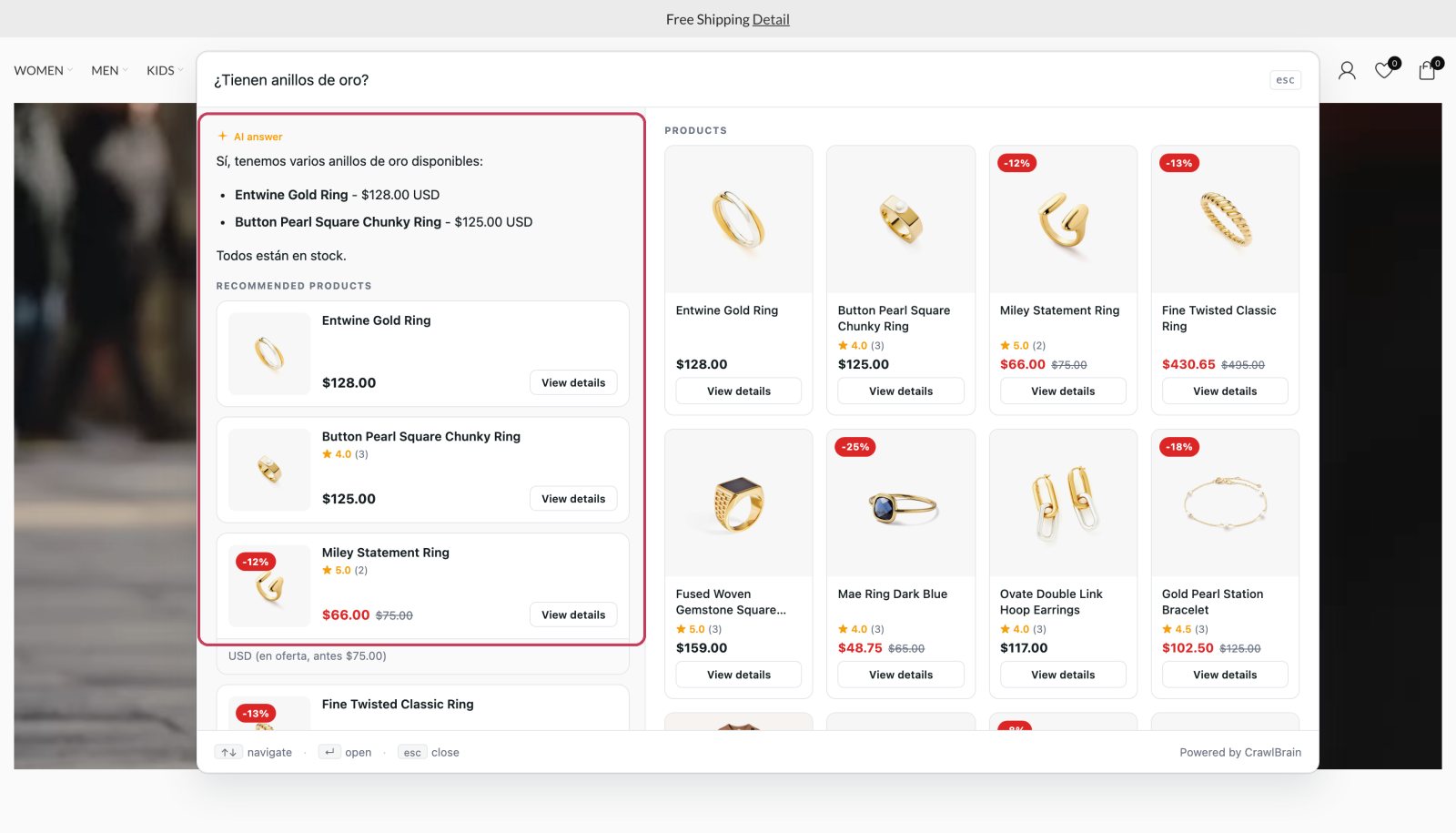
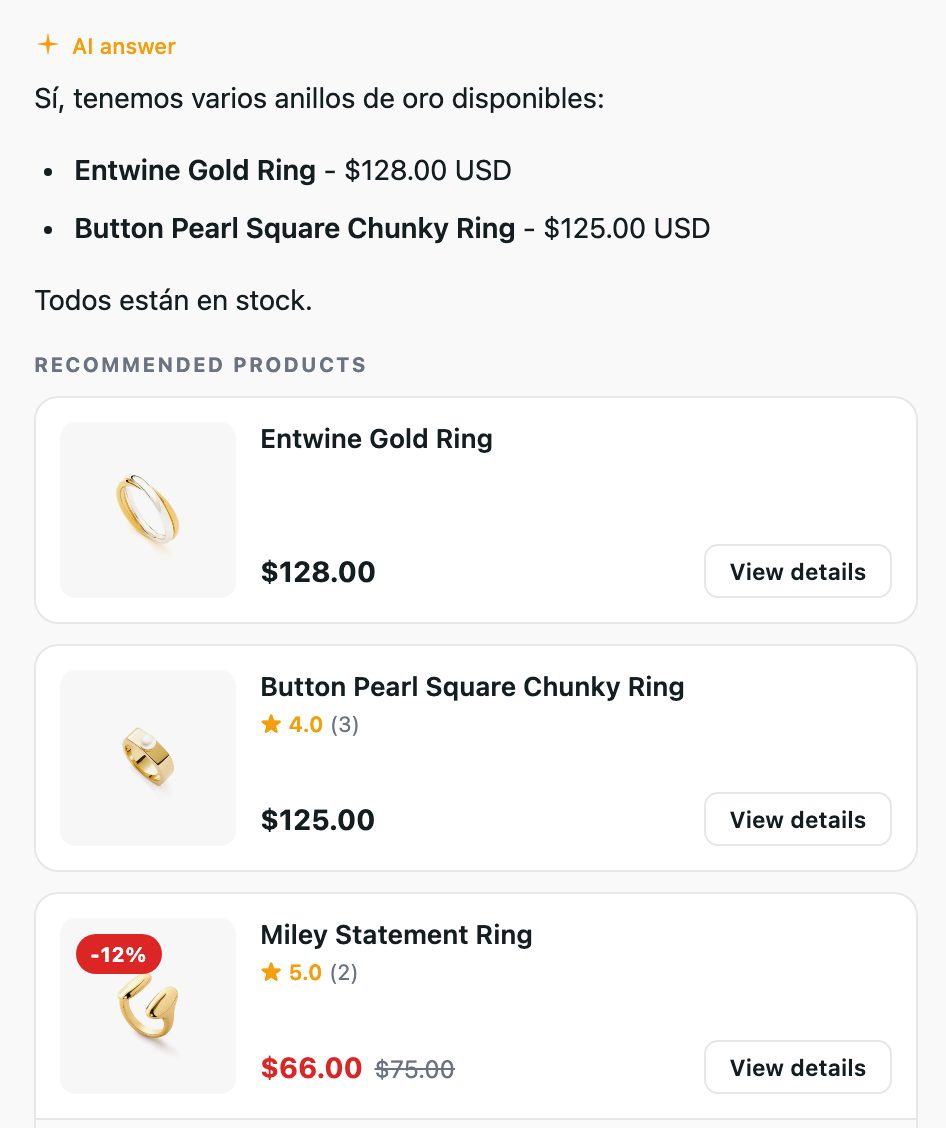
This is on by default and works in any language a visitor writes in, not only the 20 listed below, which are the languages the widget's own texts come in. You do not translate anything. Your content stays exactly as it is, and you start serving markets your site was never written for.
The settings on this page control the widget's own interface strings, which is a different and smaller job.
The three strings
Changing them takes 38 seconds on video:
| Field | Where it appears | Limit |
|---|---|---|
| Button text | On the trigger button | 60 characters |
| Input placeholder | Inside the search box | 80 characters |
| Fallback message | When the AI cannot answer | Longer |
Button text
Keep it short, like Ask AI, Need help? or Search the docs, because long labels wrap on mobile.
It only shows on the placements that have a trigger button. See Placements.
Input placeholder
Use the placeholder to tell people what they can ask.
Search the Knowledge Base ... is better than Search. Ask about shipping, returns, or sizing is better still, because it sets the expectation that questions work here.
Fallback message
This is what a visitor reads when your content does not cover their question.
The default works, and adding a way to reach you makes it better:
I couldn't find a clear answer. Try rephrasing, or email support@example.com.
That one line converts a dead end into a support ticket you can actually answer. Every fallback shown is also logged as a content gap, so you find out about it either way.
Per-language customisation
The Language dropdown at the top of the section selects which language you are editing, and nothing else.
- Pick a language.
- The three fields load that language's strings: your saved customisation if you made one, otherwise the built-in translation.
- Edit them.
- Save.
Each language keeps its own strings. Editing the German copy does not touch the English copy.
Fields you have customised are labelled Customized underneath, while fields showing the built-in translation carry no label. That is how you tell at a glance which languages you have actually been through.
Which language a visitor gets
CrawlBrain picks the language from the visitor's browser and the page they are on. You do not have to route anything.
If you have not customised a language, they see the built-in translation, which is complete for all 20 supported languages. You only need to edit a language if you want your own wording in it.
A workflow that works
- Get English right first: placeholder, button and fallback.
- Look at Conversations → Searches. The Top country card tells you which markets you actually have.
- Customise the top two or three languages from that list, especially the fallback message, since that is the one that should carry your support address.
- Leave the rest on the built-in translations.
Customising twenty languages nobody uses is work you will never get back.
Testing another language
Change your browser's preferred language, reload your site, and open the widget. Or ask a question in that language: the answer comes back in it regardless of the interface strings.