
Per-Page Overrides
Per-page overrides let a developer make the same agent behave differently on a specific site or page.
One override, start to finish, in 38 seconds:
Everything in Search Widget → Setup is the default for the website. Any of it can be overridden by adding a data-* attribute to the script tag. The attribute always wins.
A single agent and its index can then render however each surface needs it. You do not need a second website to run a dark docs section and a light marketing site.
The same table is on Search Widget → Install, under the Per-page settings tab.
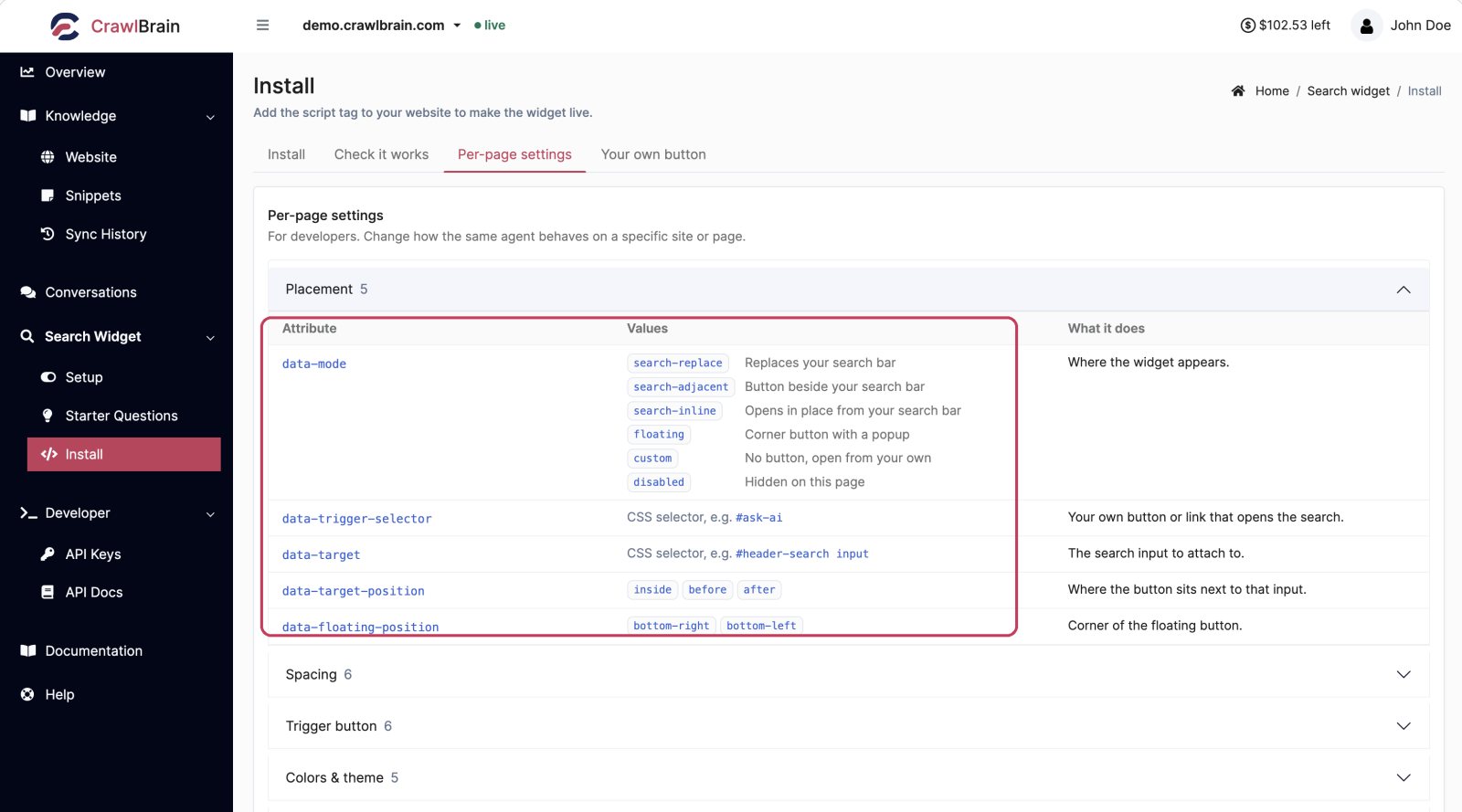
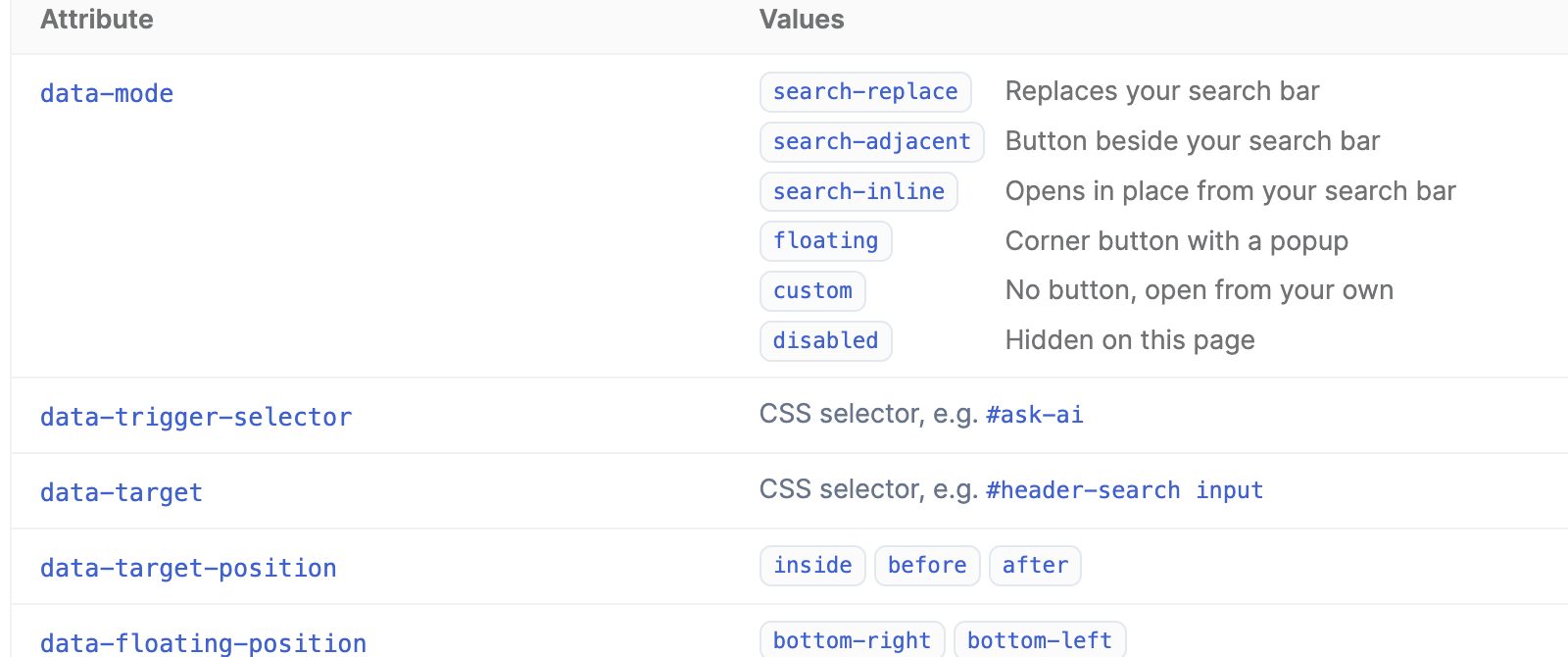
Placement
| Attribute | Values | Effect |
|---|---|---|
data-mode |
search-inline, search-replace, search-adjacent, floating, custom, disabled |
Override the placement. The three search modes anchor to a search bar and need data-target. floating is the centered popup and needs no search bar. custom shows no built-in button and opens only from your own element. disabled hides the widget on that page |
data-trigger-selector |
Any CSS selector | Open the search when your own button or link is clicked, for example #ask-ai. Comma-separate for several. Works with any placement |
data-target |
Any CSS selector | The search input to anchor against, for example #header-search input |
data-target-position |
inside, before, after |
Where the trigger sits relative to the target input |
data-floating-position |
bottom-right, bottom-left |
Corner the floating button anchors to |
Spacing
Values are a bare integer, treated as pixels, or any CSS length such as 0.5rem.
| Attribute | Effect |
|---|---|
data-adjacent-margin-left |
Gap to the left of the trigger |
data-adjacent-margin-right |
Gap to the right of the trigger |
data-adjacent-margin-top |
Override the auto-centered vertical alignment. Negative nudges upward |
data-adjacent-margin-bottom |
Vertical override, paired with top |
data-floating-margin-right |
Floating button distance from the right edge |
data-floating-margin-bottom |
Floating button distance from the bottom edge |
The floating margins are how you clear a cookie banner or a live-chat bubble.
Trigger button
| Attribute | Values | Effect |
|---|---|---|
data-button-color |
#RRGGBB |
Background of the trigger button |
data-button-text-color |
#RRGGBB |
Label color |
data-button-radius |
px or CSS length | Corner radius |
data-button-padding-v |
px or CSS length | Vertical padding |
data-button-padding-h |
px or CSS length | Horizontal padding |
data-button-icon |
none, sparkle, search, chat, lightning |
Icon next to the label |
Colors and theme
| Attribute | Values | Effect |
|---|---|---|
data-theme |
auto, light, dark |
Override the theme. Use when auto-detection picks the wrong palette |
data-brand-color |
#RRGGBB |
Accent on the AI answer block |
data-link-color |
#RRGGBB |
Links inside answers |
data-text-color |
#RRGGBB |
Body text in the modal |
data-background-color |
#RRGGBB |
Background of the whole search box. Defaults to white |
Typography and content
| Attribute | Values | Effect |
|---|---|---|
data-font-size |
small, medium, large |
Modal text size |
data-font-family |
system, sans-serif, serif, monospace, rounded, inherit |
Font inside the widget |
data-results-shown |
3 to 10 | Search results under the AI answer |
data-button-text |
Any string, max 60 chars | Trigger button label |
data-search-placeholder |
Any string, max 80 chars | Search input placeholder |
Examples
Docs header, custom colors and spacing
<script
    src="https://cdn.crawlbrain.com/v1/widget.min.js"
    data-key="YOUR-AGENT-KEY"
    data-mode="search-adjacent"
    data-target="#docs-header .search input"
    data-target-position="inside"
    data-button-color="#0F172A"
    data-button-radius="8"
    data-adjacent-margin-right="12"
    data-theme="light"
    async
></script>
Open from your own button
data-mode="custom" suppresses CrawlBrain's own button, so only your element opens the search.
<!-- Your own button, anywhere in your layout -->
<button id="ask-ai">Ask AI</button>

<script
    src="https://cdn.crawlbrain.com/v1/widget.min.js"
    data-key="YOUR-AGENT-KEY"
    data-mode="custom"
    data-trigger-selector="#ask-ai"
    async
></script>
Turn it off on checkout
<script
    src="https://cdn.crawlbrain.com/v1/widget.min.js"
    data-key="YOUR-AGENT-KEY"
    data-mode="disabled"
    async
></script>
For most sites the cleanest pattern is one global script tag in your layout, plus a conditional in your template that adds data-mode="disabled" on the pages where the widget should not appear.
Dark docs, light marketing, one account
<!-- marketing layout -->
<script src="https://cdn.crawlbrain.com/v1/widget.min.js"
        data-key="YOUR-AGENT-KEY" data-theme="light" async></script>

<!-- docs layout -->
<script src="https://cdn.crawlbrain.com/v1/widget.min.js"
        data-key="YOUR-AGENT-KEY" data-theme="dark"
        data-font-size="large" data-results-shown="5" async></script>
Opening the widget from your own code
Two globals become available once the script has loaded:
window.openWidget();
window.closeWidget();
JavaScript API documents the rest.
Widget URL
| URL | Caching |
|---|---|
https://cdn.crawlbrain.com/v1/widget.min.js |
Cached for 5 minutes, so updates reach your site quickly |
https://cdn.crawlbrain.com/v1/widget.js |
Same file, unminified, for debugging |
The Install page gives you the first URL. Older embed addresses (/widget.min.js, /v2/, /v3/) load the same file, and since updates never remove an attribute or placement, your overrides keep working.