
Notifications
Notifications controls which emails CrawlBrain sends you and where they go. Open it from the account menu.
The notification address and each email, in 41 seconds:
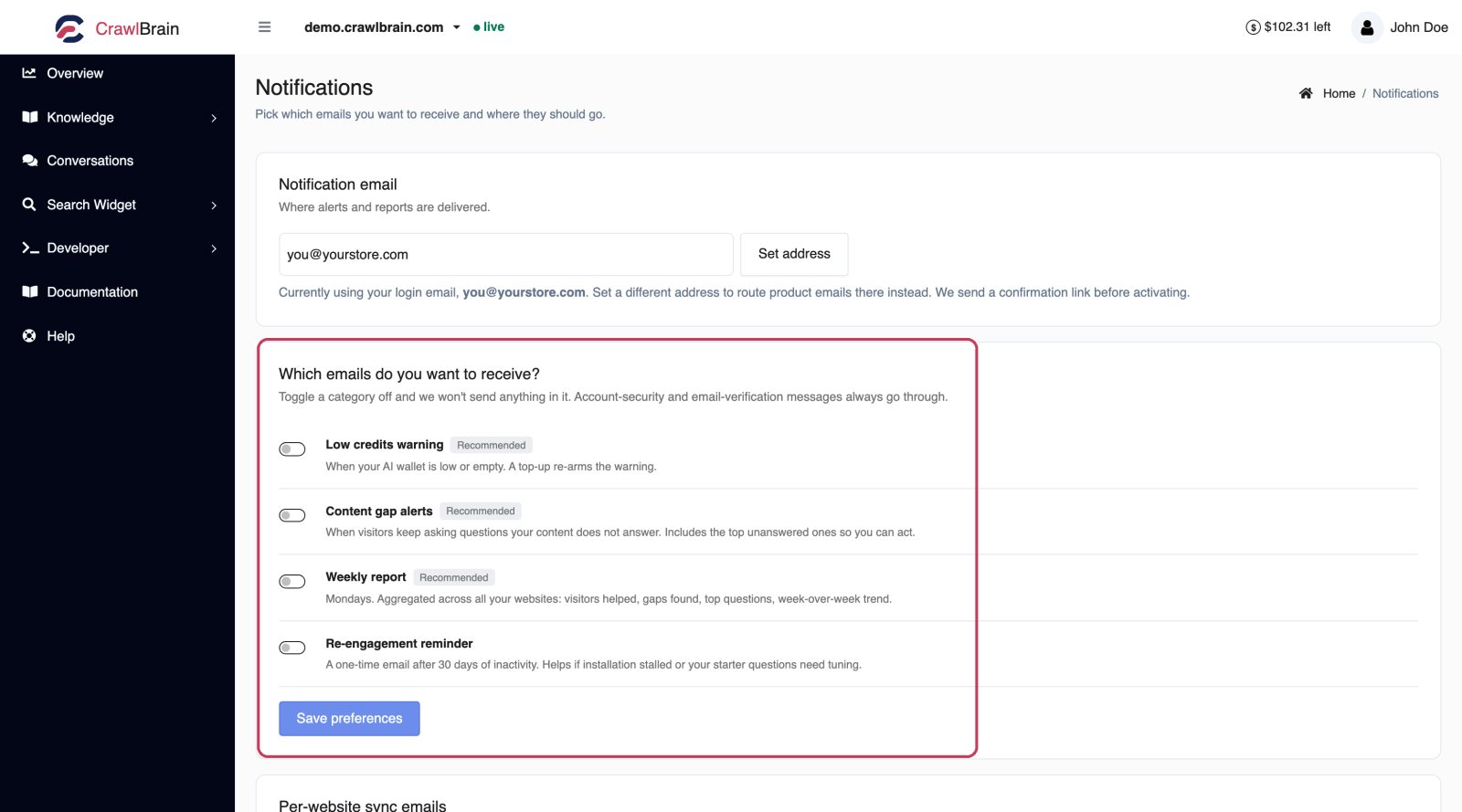
Notification email
Product emails go to your login address by default. Set a different one here to route them somewhere else, such as a shared support inbox or the alias of whoever acts on content gaps.
Type the address and click Set. CrawlBrain sends a confirmation link to the new address, and nothing moves until it is clicked. That check means a typo cannot silently send your alerts into a void.
Your login address is unaffected; change that one on Account Settings.
The four categories
Low credits warning
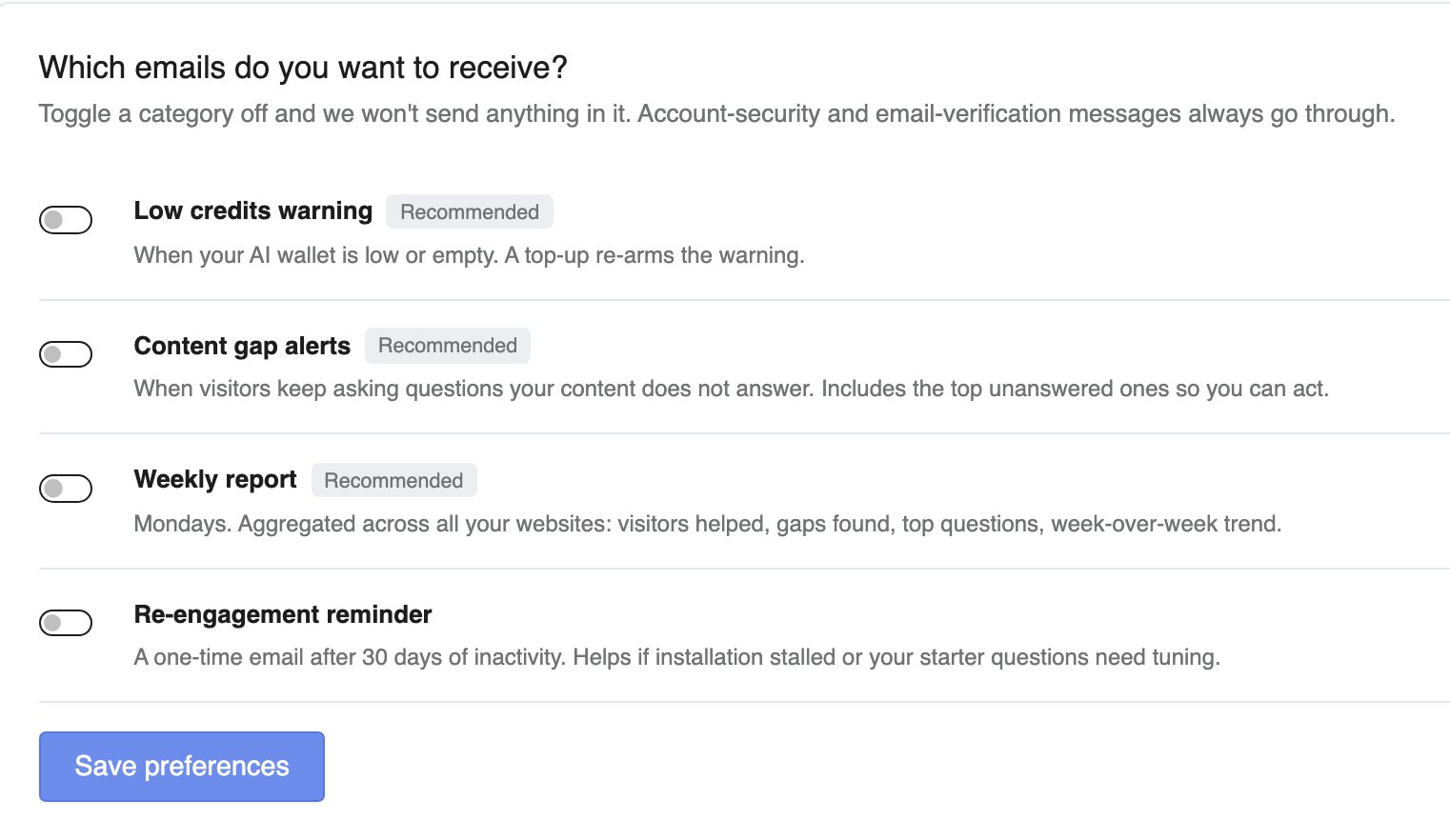
This email arrives when your credit balance falls low, and again when it reaches zero. Answers pause at zero, so it tells you before your visitors notice.
Leave this on. It is the difference between upgrading deliberately and finding out from a customer that your search stopped answering.
Content gap alerts
This alert fires when visitors keep asking questions your content does not answer. It includes the top unanswered ones, so you can act straight from the email.
Leave this on too. It is the only alert that arrives with a task attached, and closing three gaps a week is the single highest-value habit in the product.
The volume that triggers it is set per website, in that website's settings, so a site with light traffic does not email you about two questions.
Weekly report
The weekly report arrives on Mondays and covers all your websites together: visitors helped, gaps found, top questions and the week-over-week trend.
It suits someone who wants the picture without opening the dashboard. If you are in the dashboard daily, it is redundant.
Re-engagement reminder
CrawlBrain sends one email after 30 days of inactivity. It exists because the two most common reasons an account goes quiet are an installation that stalled halfway and starter questions nobody tuned, and both are ten-minute fixes.
It stays quiet once you are active, because it only fires when nothing is happening.
Toggle what you want and click Save preferences.
Emails that always go through
Account security and email verification messages always go through: password resets and sign-in alerts on the security side, address confirmations on the verification side.
They are not on this page and cannot be switched off. Turning off the email that lets you recover your account is not a preference we will honour.
Per-website sync emails
Whether a specific site emails you when it finishes syncing is set per website, not here. Open that site's Sync Settings and use Email me when sync finishes.
It helps during setup and gets noisy afterwards, so most people turn it on for the first week and off after that.
Unsubscribing from an email
Every product email has a one-click unsubscribe, and your mail client's own Unsubscribe button works too. Either one turns off that category.
Resubscribing is a link on the confirmation page, so an accidental unsubscribe is one click to undo, without logging in.
What to actually turn on
Solo, hands-on. Turn on low credits and content gaps, and skip the weekly report because you are already looking.
A team, someone else owns content. Route all four to the shared inbox.
Set and forget. Keep only the low credits warning, so you hear from us when something needs a decision and never otherwise.