
Choosing a Method
To put the widget on your pages, open Search Widget → Install.
The three ways to install, in 47 seconds:
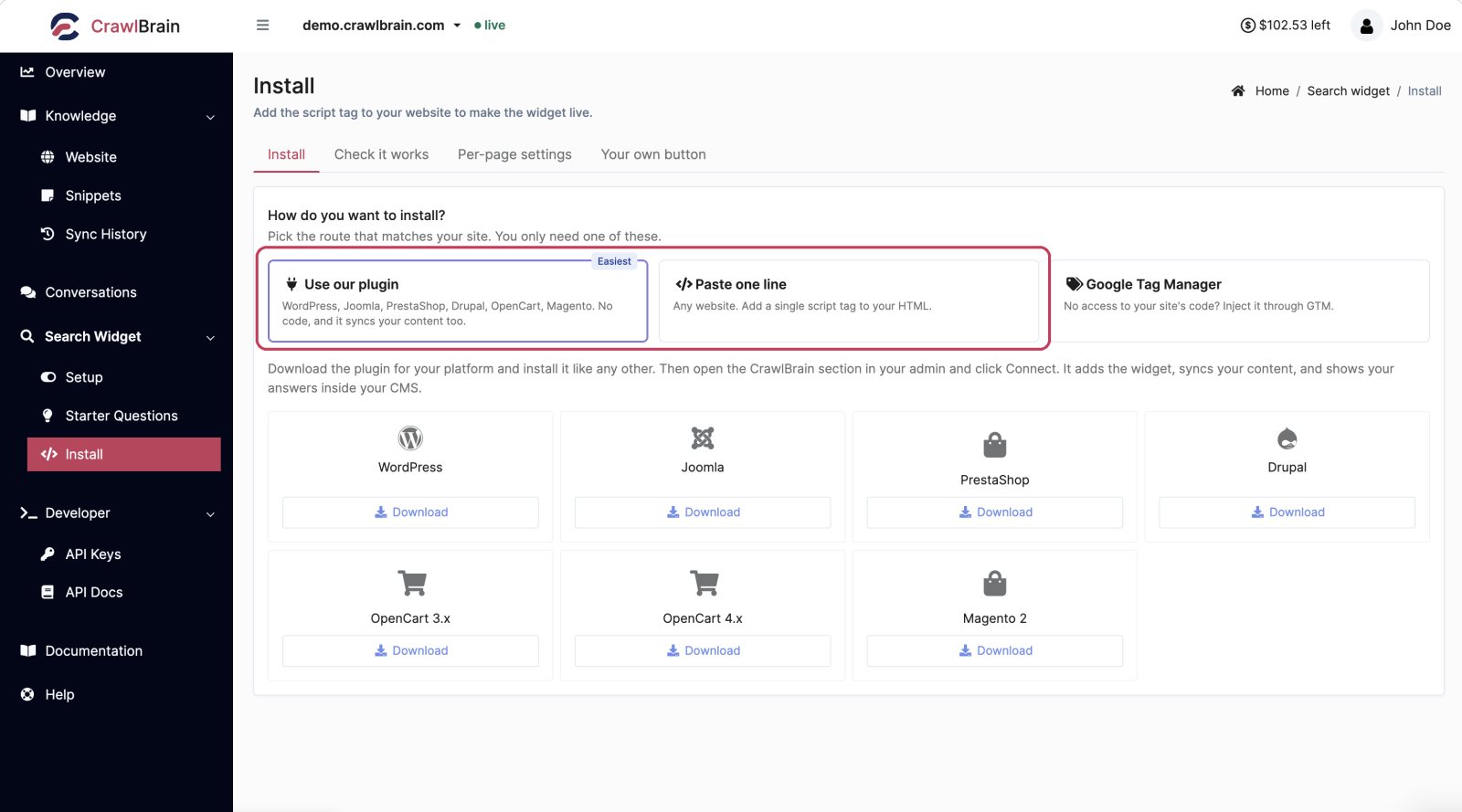
The page offers three routes, and you only need one of them.

Which one is yours
| Route | Use it when | Effort |
|---|---|---|
| Use our plugin | You run WordPress, Joomla, PrestaShop, Drupal, OpenCart, or Magento | Easiest. No code |
| Paste one line | Any other website, and you can edit your theme | One script tag |
| Google Tag Manager | You cannot edit your site's code | One GTM tag |
If a plugin exists for your platform, take it. It does more than the script tag: besides installing the widget, it syncs your content and shows your answers inside your CMS admin.
The script tag
Whichever route you pick, this is what ends up on your pages:
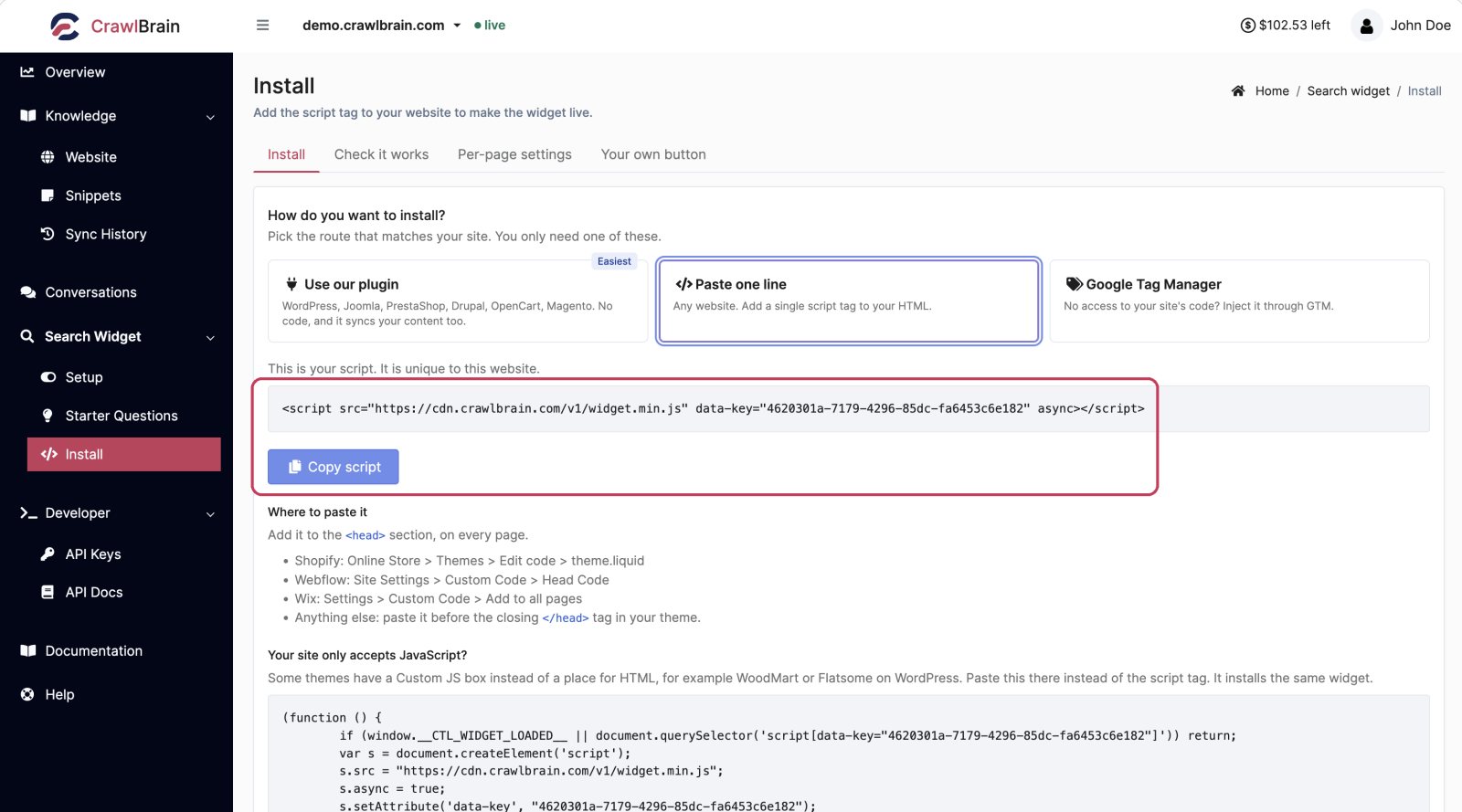

<script src="https://cdn.crawlbrain.com/v1/widget.min.js" data-key="YOUR-AGENT-KEY" async></script>
Three things to know about it:
- The key is unique to this website. Copy it from your own Install page, not from this manual.
asyncmatters. The widget never blocks your page rendering.- It goes on every page, in the
<head>. Your site layout or theme header, not a single page.
The key is public by design. Anyone who opens your page source can see it, exactly like a Google Analytics id, but all it permits is searching your public content: it is not an API key and it cannot read or change your account. Your real API keys are a separate thing and must stay secret.
Where to paste it
| Platform | Location |
|---|---|
| Shopify | Online Store → Themes → Edit code → theme.liquid |
| Webflow | Site Settings → Custom Code → Head Code |
| Wix | Settings → Custom Code → Add to all pages |
| Squarespace | Settings → Advanced → Code Injection → Header |
| Anything else | Before the closing </head> tag in your theme |
Per-platform walkthroughs: WordPress, Shopify, Webflow, Wix, Squarespace, Google Tag Manager, other CMS plugins.
Speed up the first load
This step is optional and takes ten seconds, and it improves your Lighthouse score rather than costing you anything.
The widget talks to two hosts your page has never contacted before: the CDN it loads from, and the API it answers from. On a visitor's first page view the browser has to do DNS, TCP and TLS for both before anything can happen, and those handshakes sit in the critical path.
Tell the browser to get them out of the way early. Put these next to the script tag:
<link rel="preconnect" href="https://cdn.crawlbrain.com">
<link rel="preconnect" href="https://api.crawlbrain.com" crossorigin>
The crossorigin on the second one and not the first is deliberate, and getting it backwards wastes the hint:
- The CDN serves a plain
<script src>, which is not a CORS request. Addingcrossoriginthere makes the browser open a second connection it never uses. - The API is reached with
fetch, which is CORS. Withoutcrossoriginthere, the warmed connection cannot be reused.
This does not make your page heavier and it does not block rendering. Lighthouse has an audit called Preconnect to required origins that asks for exactly this, so if anything it helps your score.
Nothing here is required, and the widget works without it. It is worth doing on sites where a large share of visitors arrive cold, which is most content sites arriving from search.
Check it worked
Two buttons at the bottom of the Install page check your setup.
The check on video, 47 seconds:
Check installation fetches your website and looks for the script. It tells you whether it found it, and if not, what to try.
Test search mounts the real widget right there in the dashboard, against your real index. Use it to confirm your content answers well before you put anything on your site.
The order that saves time
- Test search first. Confirm the answers are good while nothing is live.
- Then install. Plugin, script tag, or GTM.
- Then Check installation.
- Then look at your real site. Click your search box and ask a question.
Installing before you have checked answer quality means your visitors are the ones who find the gaps.
Allowed domains
Under Search Widget → Install → Allowed domains you choose where your script may run. With Only your website selected, it answers on that website alone, with or without www, and a site that copies your script tag gets no results, so it cannot spend your credit. Websites added from October 2026 start this way; older ones start on Any website so nothing already installed stops working.
Setting it takes 35 seconds on video:
Installing the same script somewhere else, such as a staging copy or a second domain? Add that domain to the list, one per line. *.example.com covers every subdomain of example.com.
Pick Any website only when the widget ships inside something your customers install on their own sites, for example a help panel in your plugin. Pages on localhost and the preview in CrawlBrain always work, so testing needs no entry.
Removing it
Delete the script tag, or deactivate the plugin. The widget disappears on the next page load.
Your index and conversations stay untouched, along with your settings, so putting it back is one paste away.
To turn it off on specific pages instead of everywhere, use data-mode="disabled". See Per-Page Overrides.