
WordPress
The CrawlBrain plugin is how you install on WordPress. It adds the search widget to every page and shows what visitors ask inside your WordPress admin, while your posts, pages and products stay in sync. The install takes about two minutes and needs no code or theme editing.
The video below shows the whole install in 1 minute 26 seconds:
1. Download the plugin
In CrawlBrain, open Search Widget > Install, choose Use our plugin, and click Download on the WordPress card.
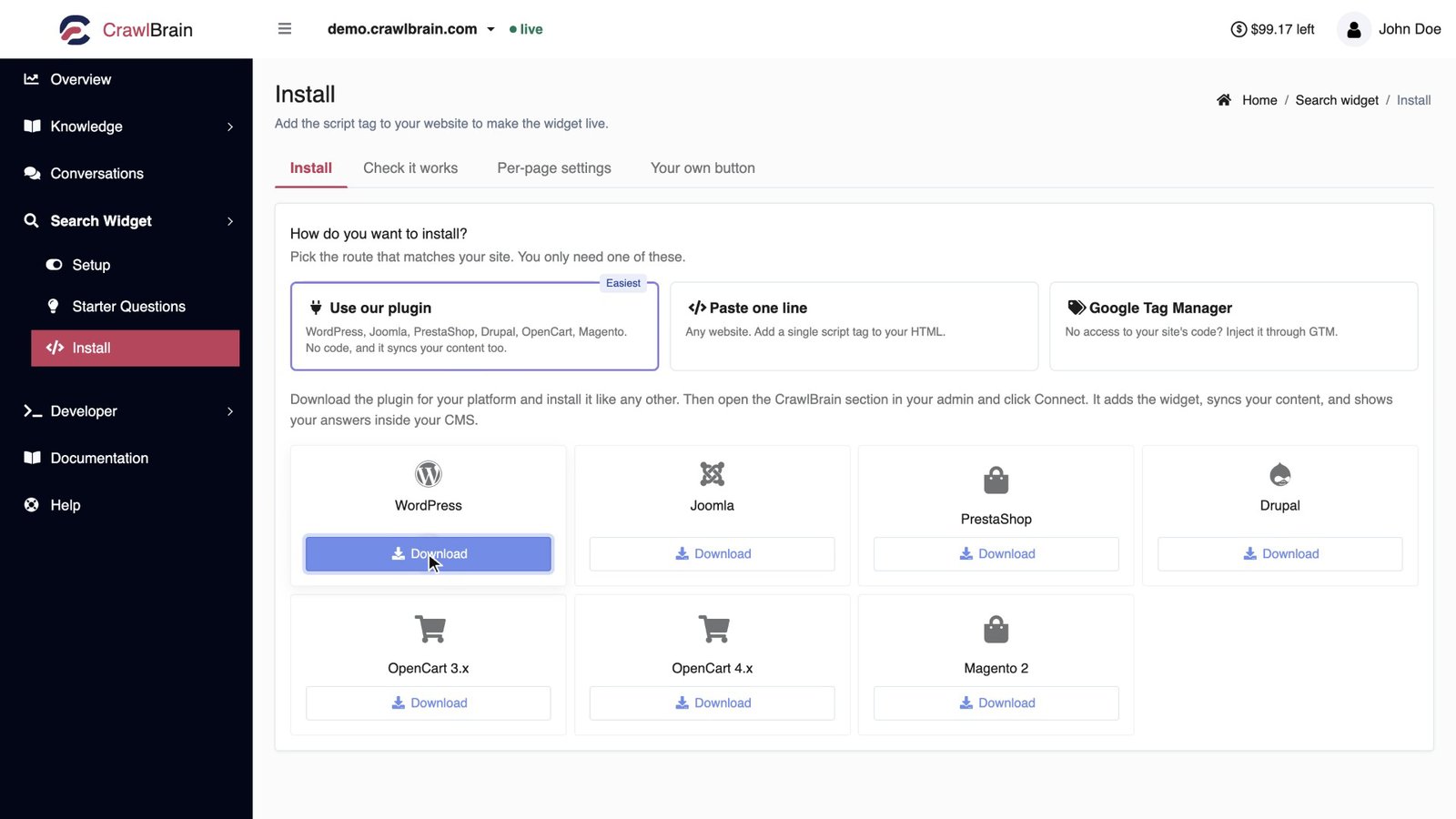
You get a ZIP file. Do not unzip it.
2. Upload and activate it
- In WordPress, go to Plugins > Add New Plugin.
- Click Upload Plugin, choose the ZIP, then Install Now.
- Click Activate Plugin.
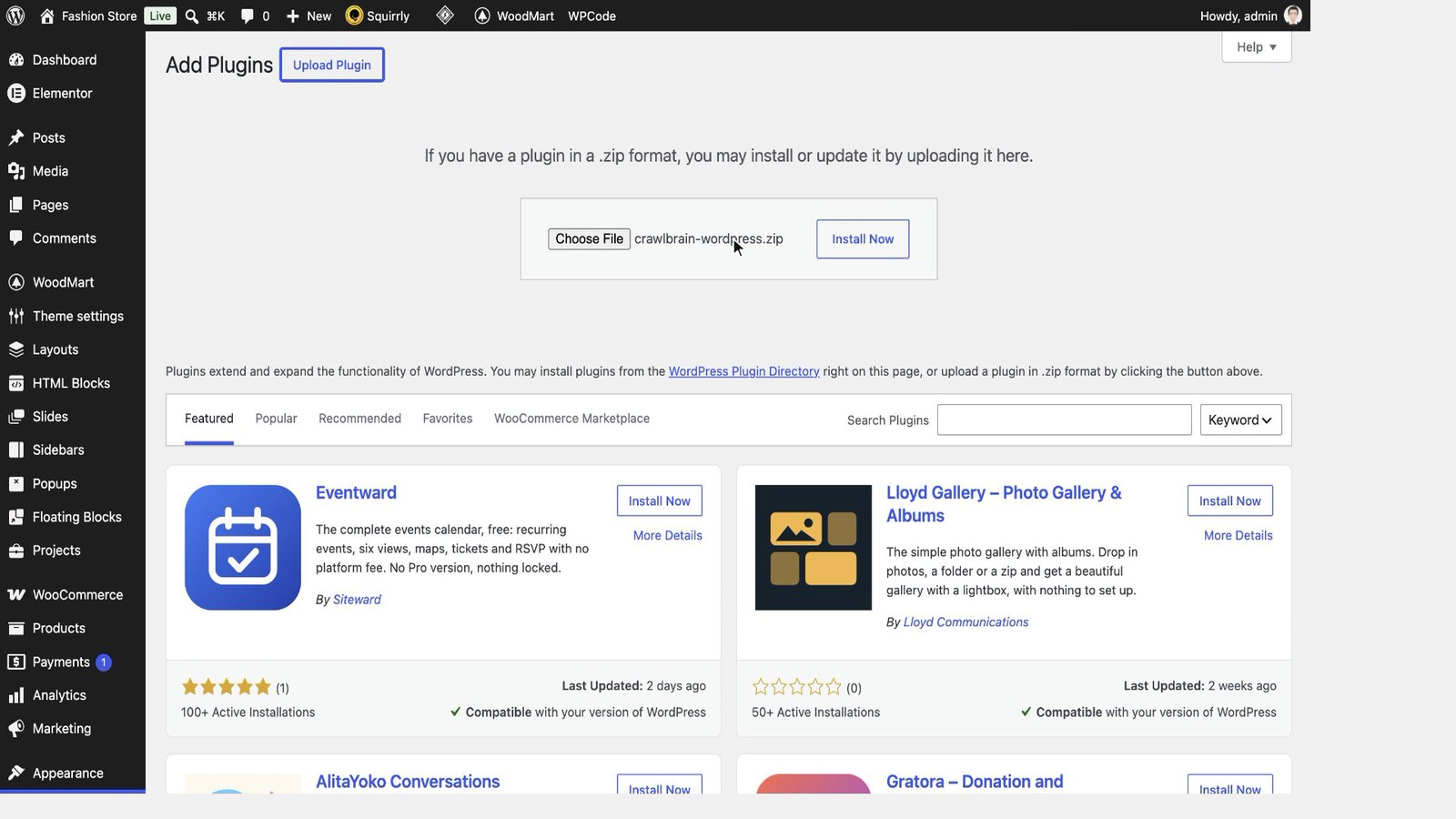
A CrawlBrain item appears in the WordPress admin menu.
3. Connect your account
Open CrawlBrain in the admin menu and click Connect to CrawlBrain.
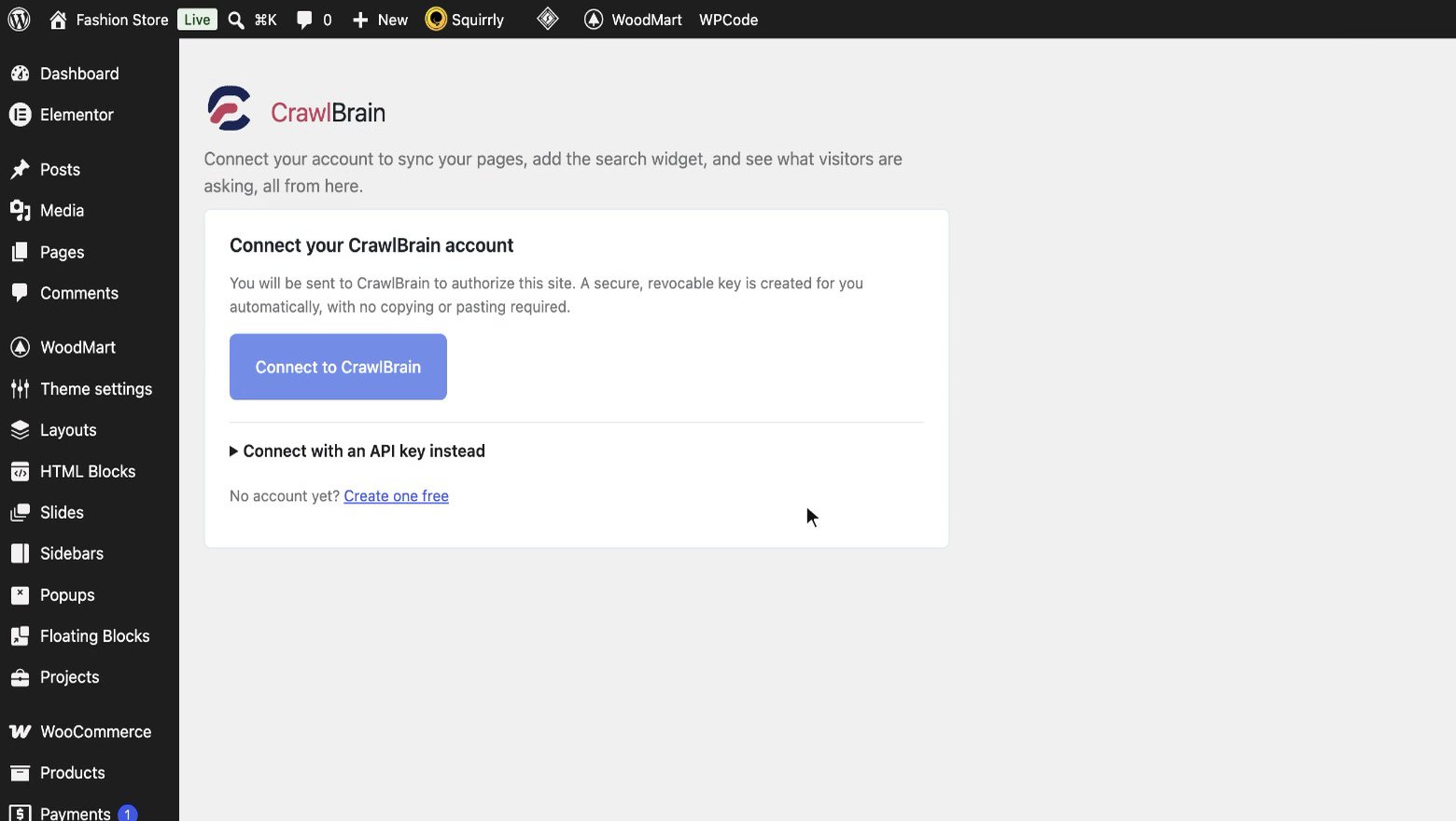
You are sent to CrawlBrain. Sign in, or create an account if you do not have one yet, then click Authorize and you come back to WordPress connected, with no key to copy.
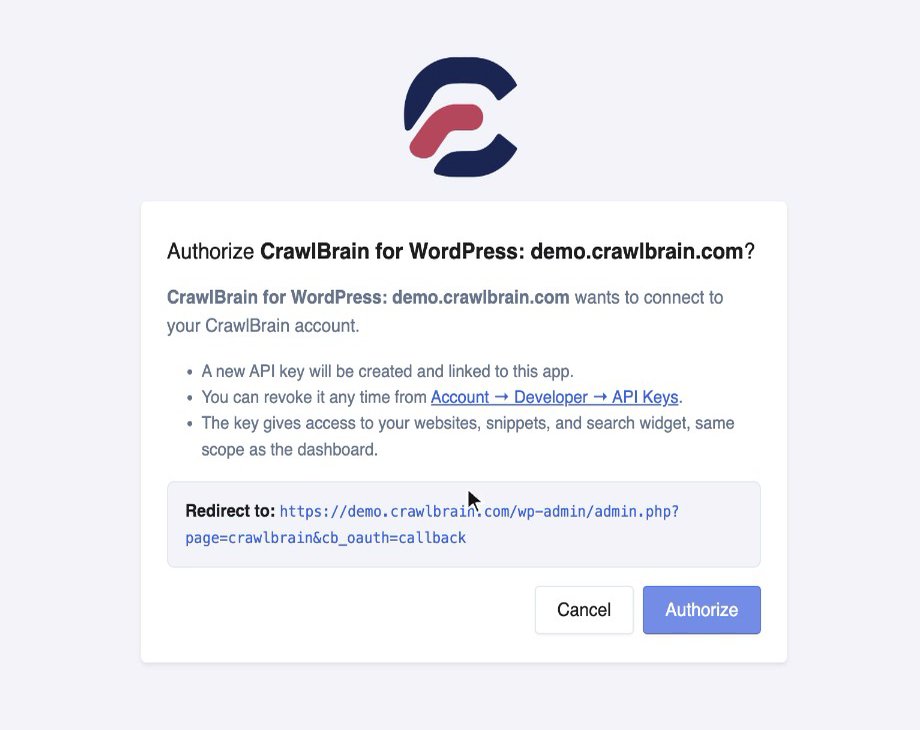
One-click connect needs your site on HTTPS. On a site without it, open Connect with an API key instead, create a key under Developer > API Keys in CrawlBrain, and paste it there.
4. Choose the website
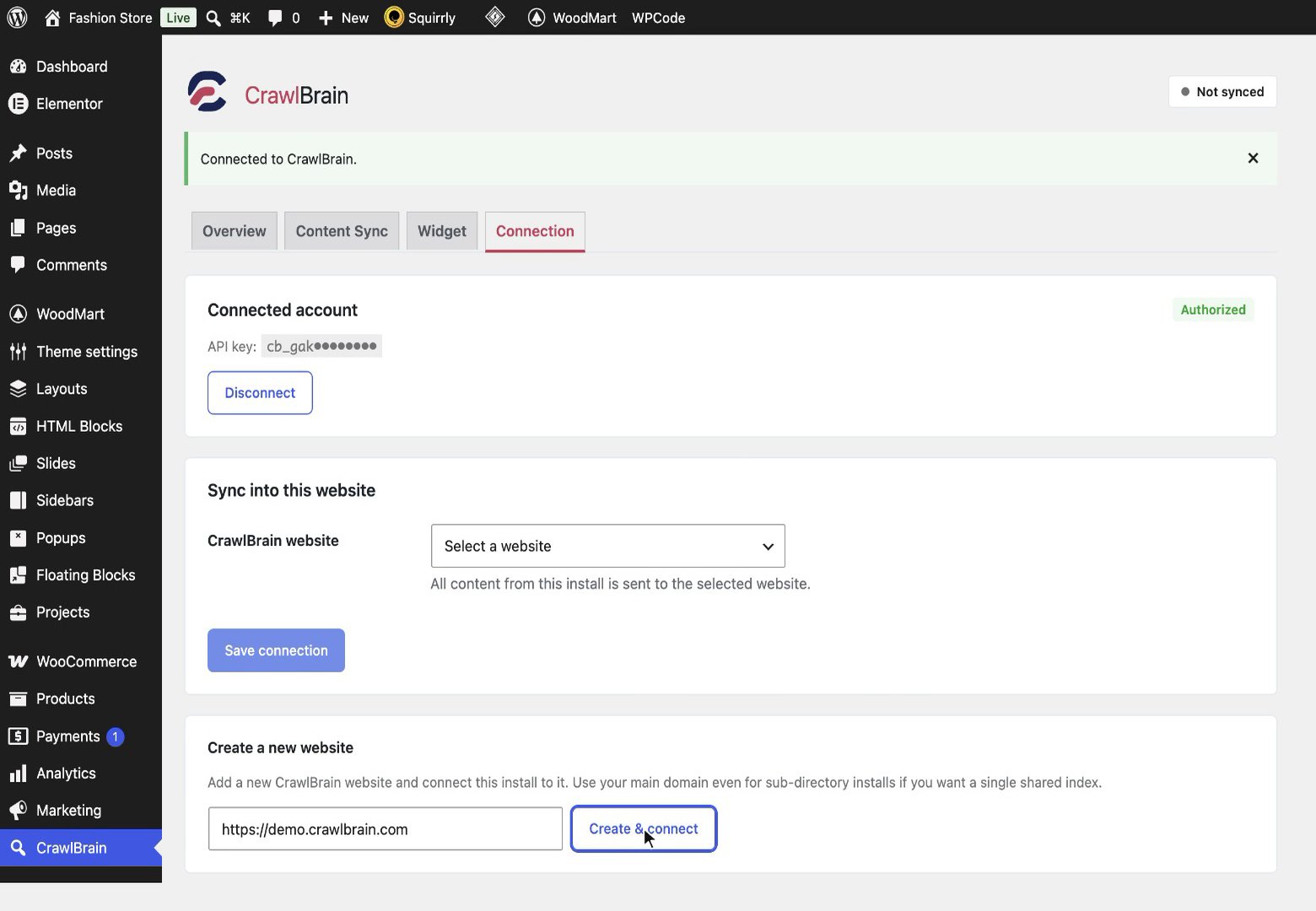
On the Connection tab, click Create & connect. It adds this site to your CrawlBrain account and starts reading your content.
If you already added the site in the CrawlBrain dashboard, pick it from CrawlBrain website instead and click Save connection. Creating it twice is harmless too: the plugin connects to the one that exists.
That is the install. The Overview tab now shows your answers and the questions visitors ask most, along with any content gaps. Search is live on your site as soon as the first pages are indexed, usually within a few minutes.
5. Check the settings (optional)
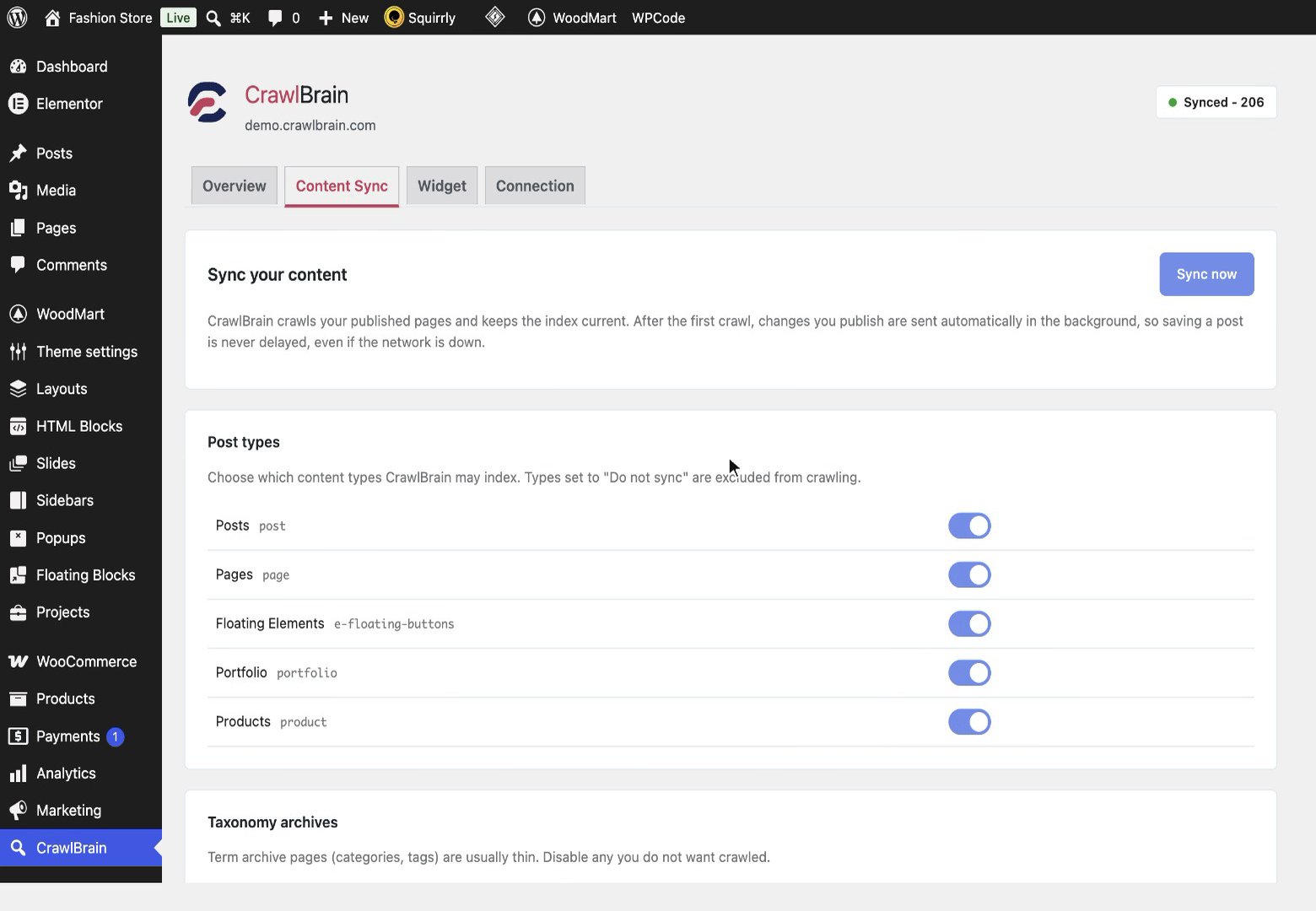
Content Sync lists your post types and taxonomies. Set anything you do not want searchable to Do not sync. New and edited posts are sent to CrawlBrain as you publish them, so you never wait for a nightly crawl. Sync now re-reads the whole site.
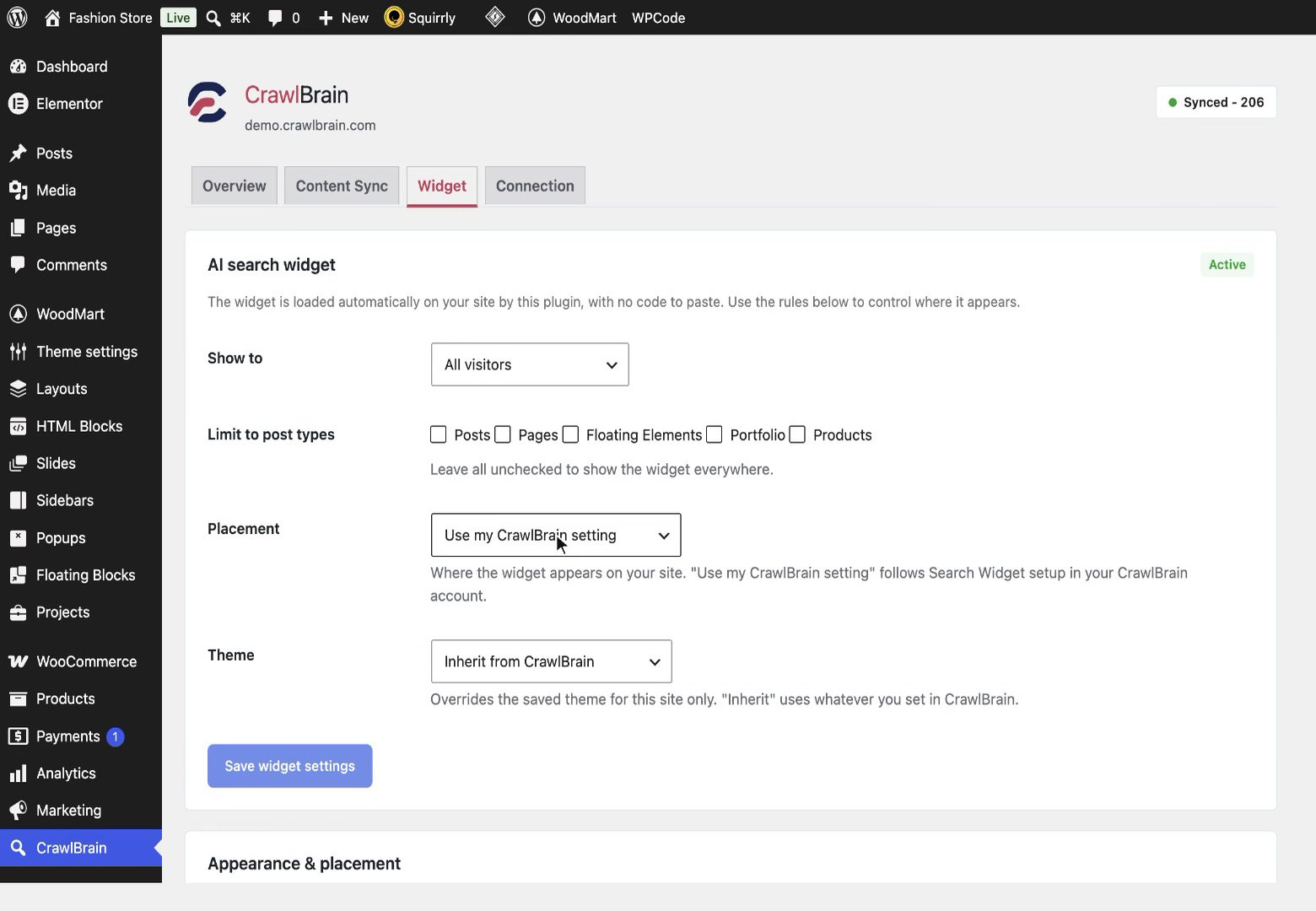
Widget controls who sees search and where it opens. Placement set to Use my CrawlBrain setting follows what you choose in Search Widget > Setup in CrawlBrain, which is the easiest way to manage it.
6. Try it
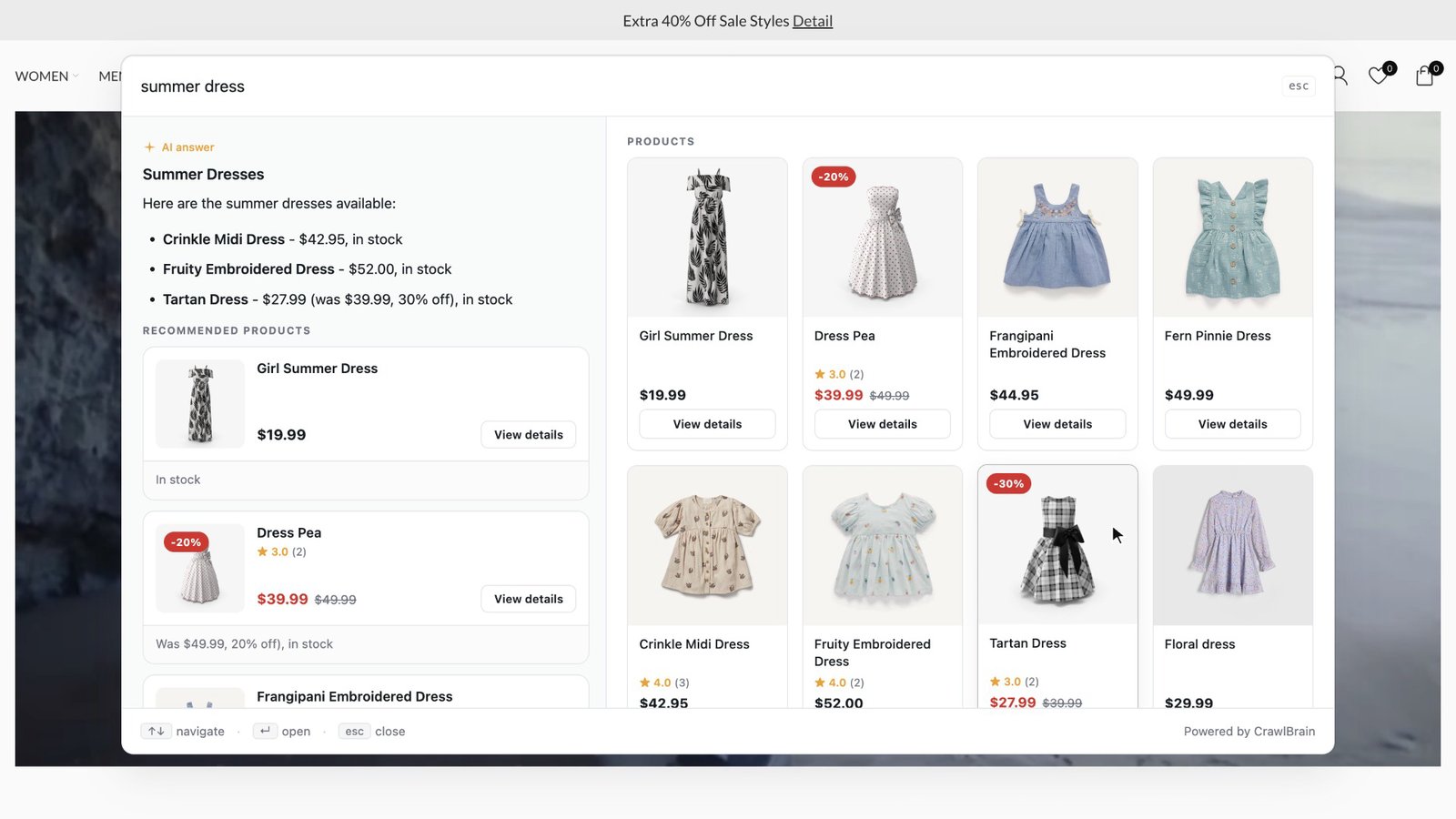
Open your site and click your search box. The CrawlBrain panel opens with results that appear as you type, and pressing Enter gives an answer written from your own pages.
If the panel does not open from your search box, set the placement to Replace search bar in Search Widget > Setup and leave the CSS selector empty, because WordPress search fields are found automatically. See Placements if your theme hides its search box in a menu.
WooCommerce
WooCommerce needs nothing extra installed. Products are read with their price, sale price, stock and attributes, so shoppers can filter by color or size and ask for "dresses under 50". Cart, checkout, account, wishlist and filtered copies of your shop pages are skipped automatically.
Caching plugins
If you use WP Rocket, W3 Total Cache, LiteSpeed Cache or similar, purge the cache after connecting. Cached pages keep serving without the widget until you do.
If your cache plugin delays or combines JavaScript, the widget still works: it loads when the visitor first interacts with the page. If you see it load late, exclude cdn.crawlbrain.com from the delay list.
Security plugins and firewalls
If CrawlBrain cannot read your site, a security plugin or firewall is the usual cause. The sign is a wall of 403 rows, or bot_challenge, in Knowledge > Sync History.
Allow the crawler IP shown at the top of Sync History in Wordfence, WP Ghost, Cloudflare, or whatever sits in front of your site.
Without the plugin
If you would rather not add a plugin, paste the script tag from Search Widget > Install into your site's <head>. Use a child theme or a code snippets plugin, never the parent theme's header.php, which a theme update overwrites.
In your child theme's functions.php:
add_action( 'wp_head', function () {
    echo '<script src="https://cdn.crawlbrain.com/v1/widget.min.js" data-key="YOUR-AGENT-KEY" async></script>';
} );
Without the plugin, new posts are picked up by the daily sync instead of when you publish them.
Removing it
Deactivate and delete the plugin in Plugins, and the widget disappears on the next page load. Your indexed content stays in your CrawlBrain account until you delete the website there.