
Widget Overview
The search widget is the part of CrawlBrain your visitors actually touch, and one script tag turns your existing search bar into an answer engine.
A 42-second tour of the Setup screen:
Open Search Widget → Setup.
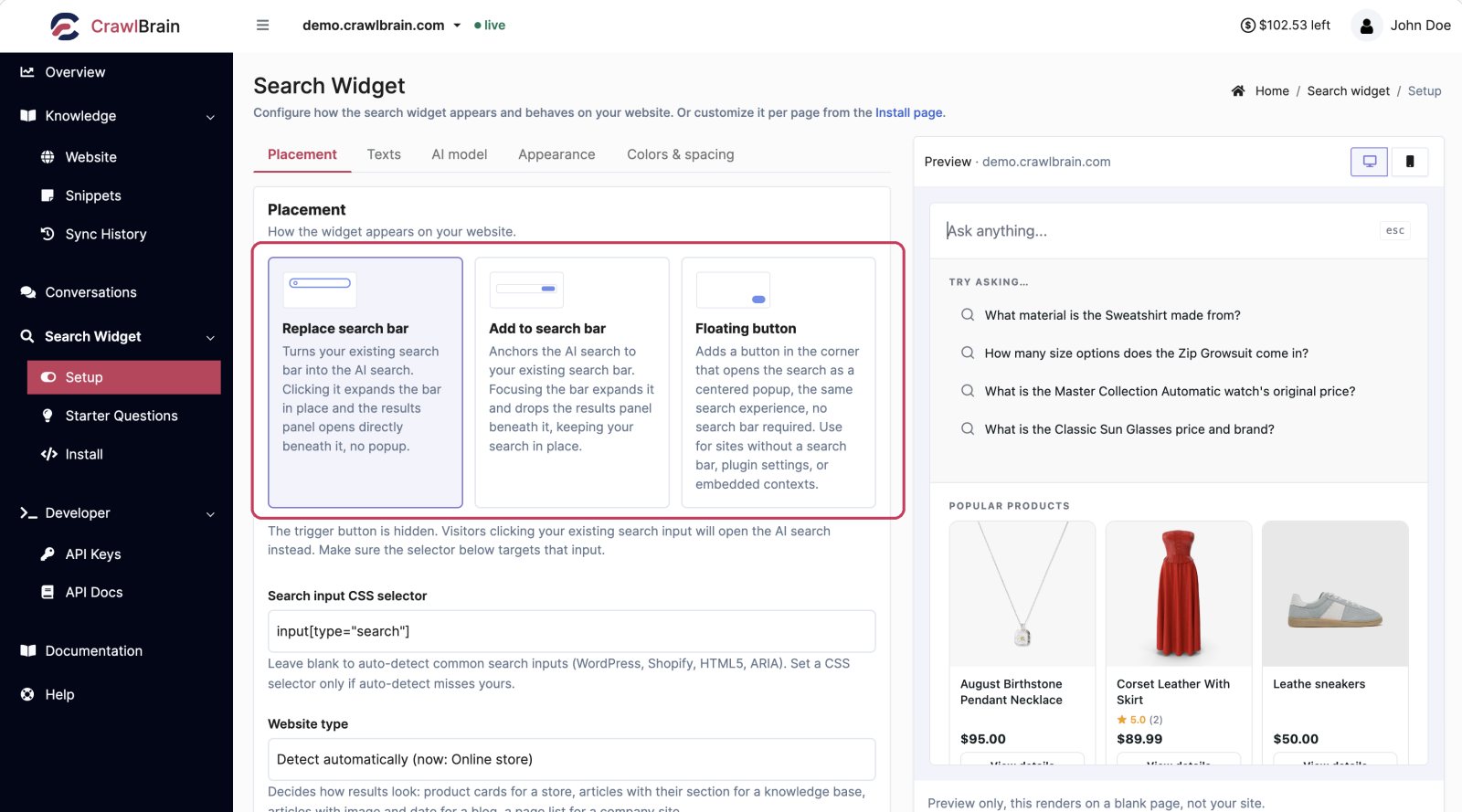 Settings on the left, a live preview on the right.
How the page works
Everything you change on the left renders immediately on the right. Nothing is live until you click Save changes at the bottom.
The preview draws the widget on a blank page rather than on your site. Colors, fonts, sizes and texts come out accurately, but it cannot show you how the widget sits inside your own header, because it does not have your header. For that, use the browser extension, which mounts the widget on your real site and lets you tune it there.
What is on the page
| Section | Covered in |
|---|---|
| Placement | Placements |
| Texts and translations | Texts and Languages |
| AI model and tone | AI Model and Tone |
| Appearance | Appearance |
Two sibling pages complete the set: Starter Questions, which are the suggestions shown before anyone types, and Install, which is the script tag itself.
What a visitor sees
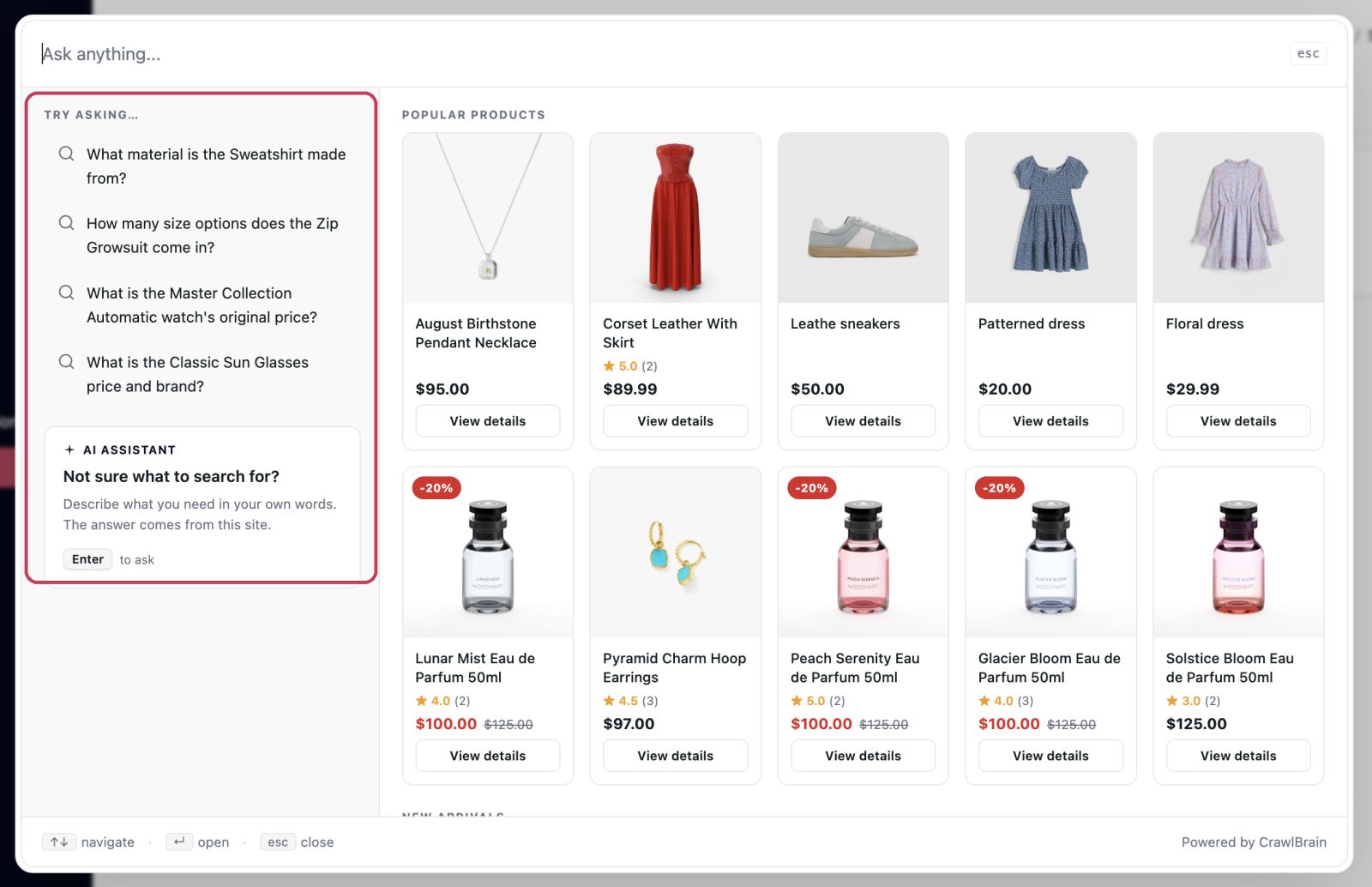
Before they type. The panel shows your starter questions and the keyboard hints.
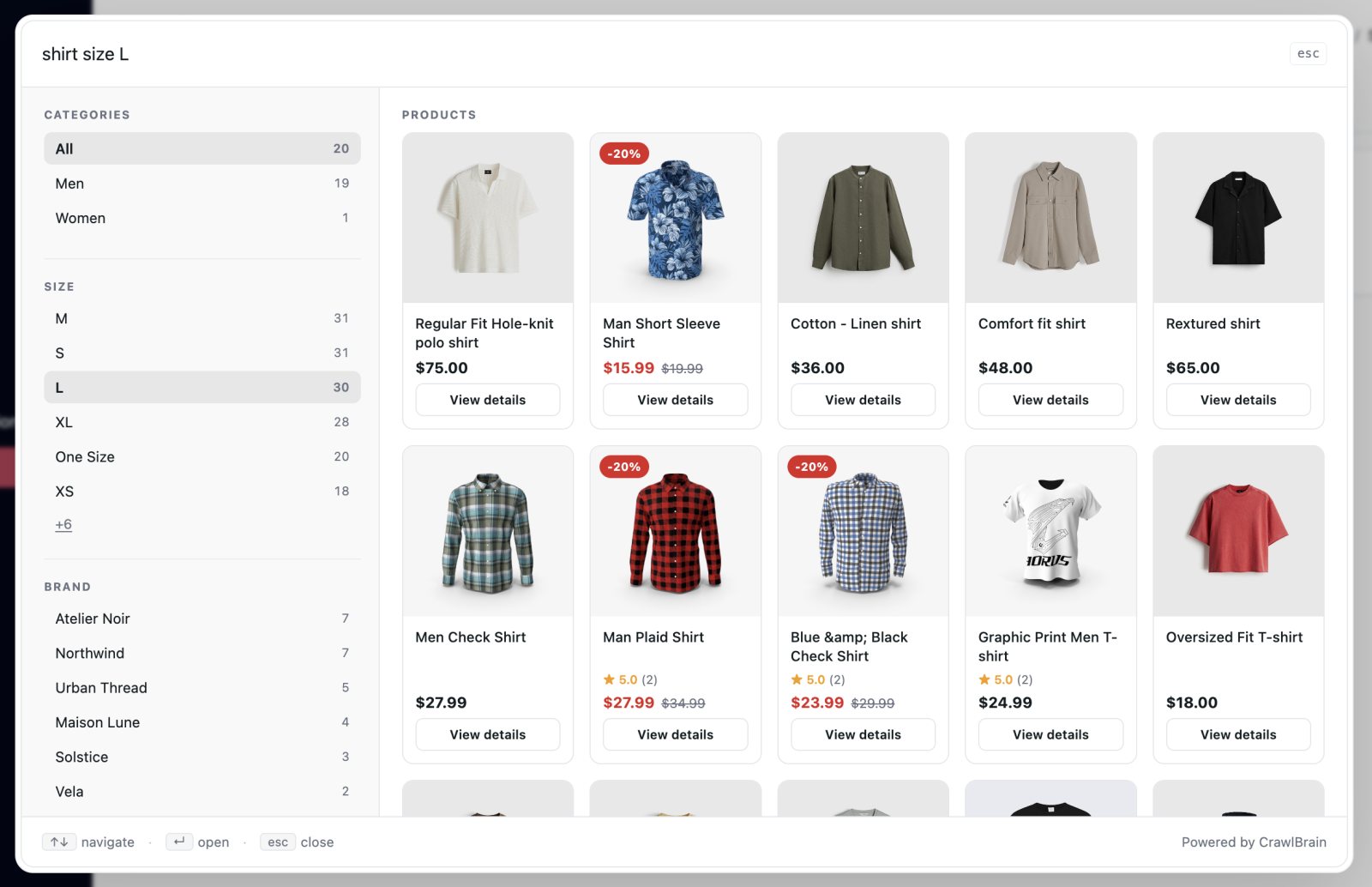
As they type. Instant results update letter by letter. This is the search layer, and it runs without AI, so there is no waiting.
When they press Enter. The AI answer appears, with the products or pages it came from and a thumbs up or down.
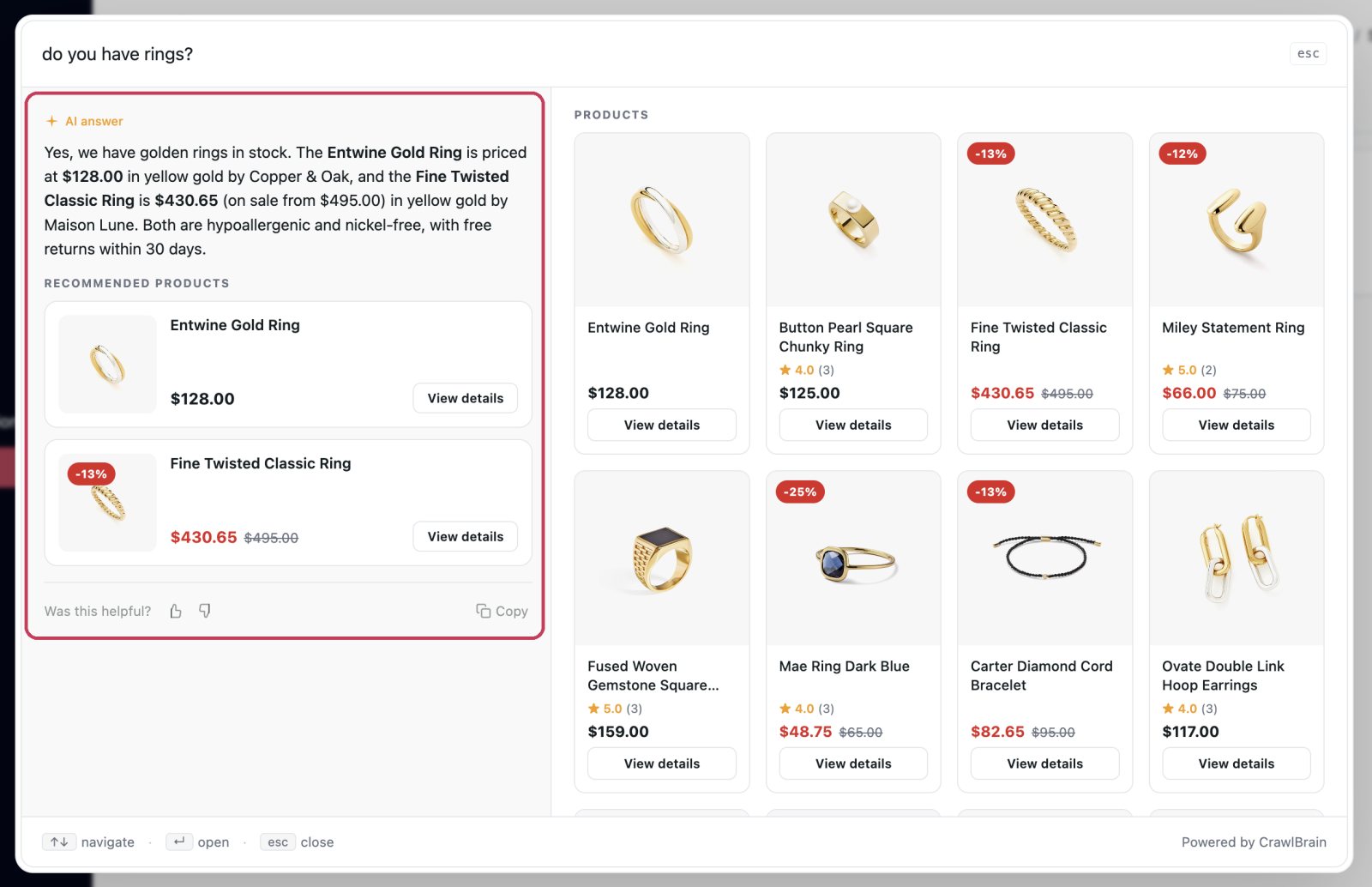
 Zoomed in: the answer names two rings, and both appear as cards with their current price.
Search results stay visible next to the answer, so a visitor who would rather read the page themselves still can.
When they ask again. Each answer is kept. The arrows next to the search box step back and forward through them, and the results on the right follow.
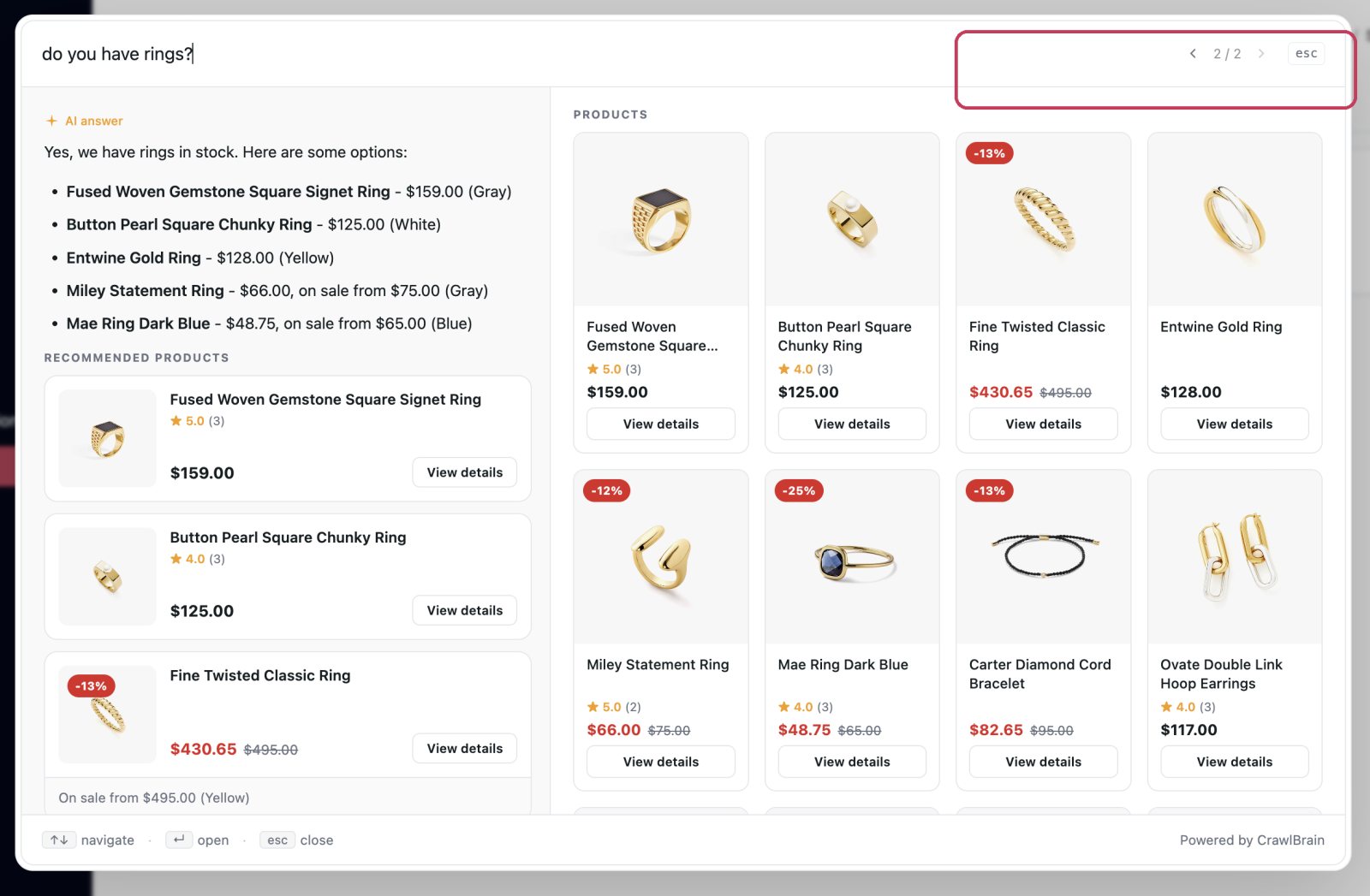
 Zoomed in: answer 2 of 2.
On a store, filters. Categories, colors, sizes and brands read from your product pages appear on the left. Counts update as a visitor narrows the list.
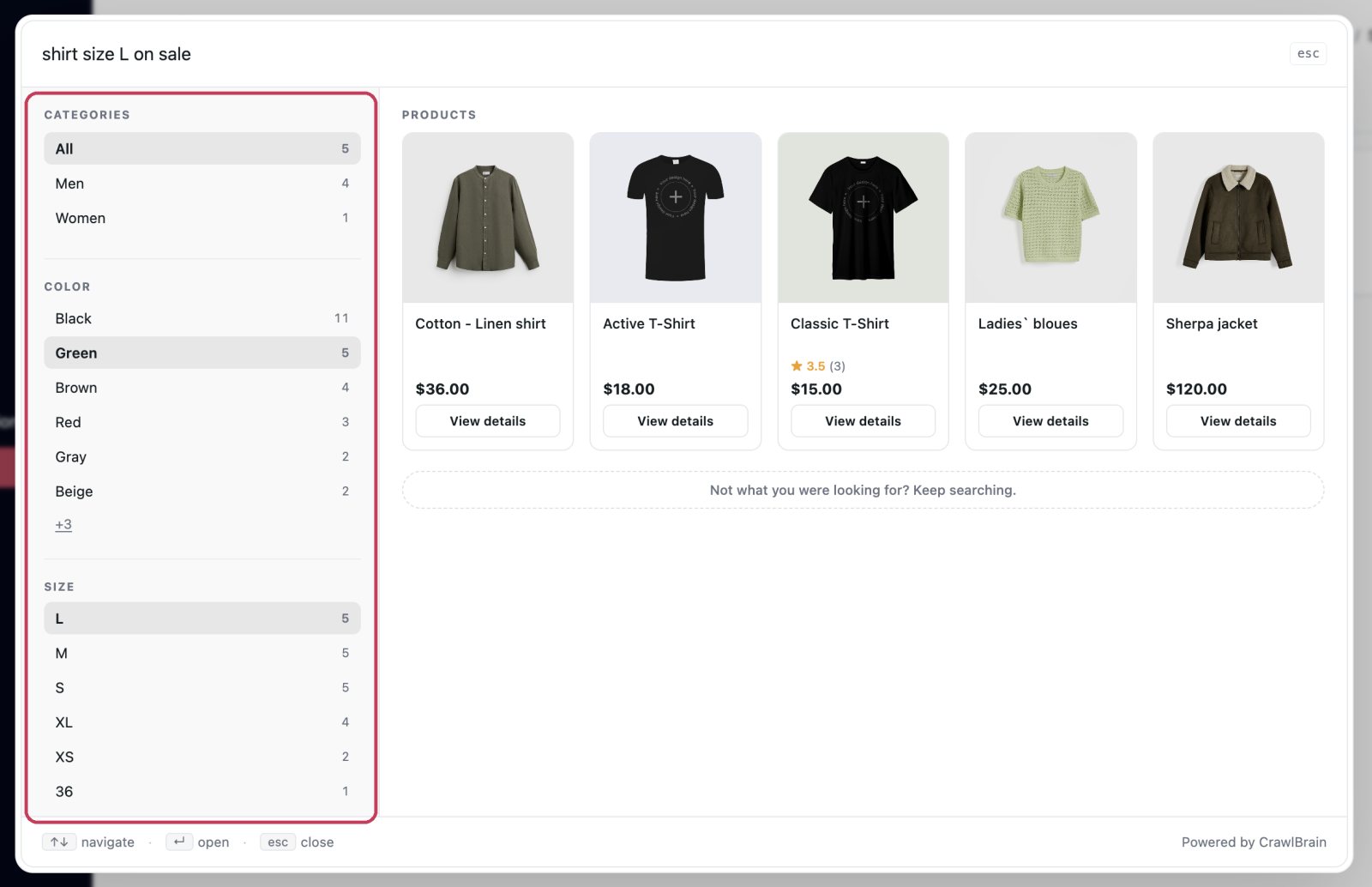
 Zoomed in: Green and size L selected, 5 products left.
Answering in the visitor's language
Ask in Spanish and you get Spanish back, sourced from English pages.
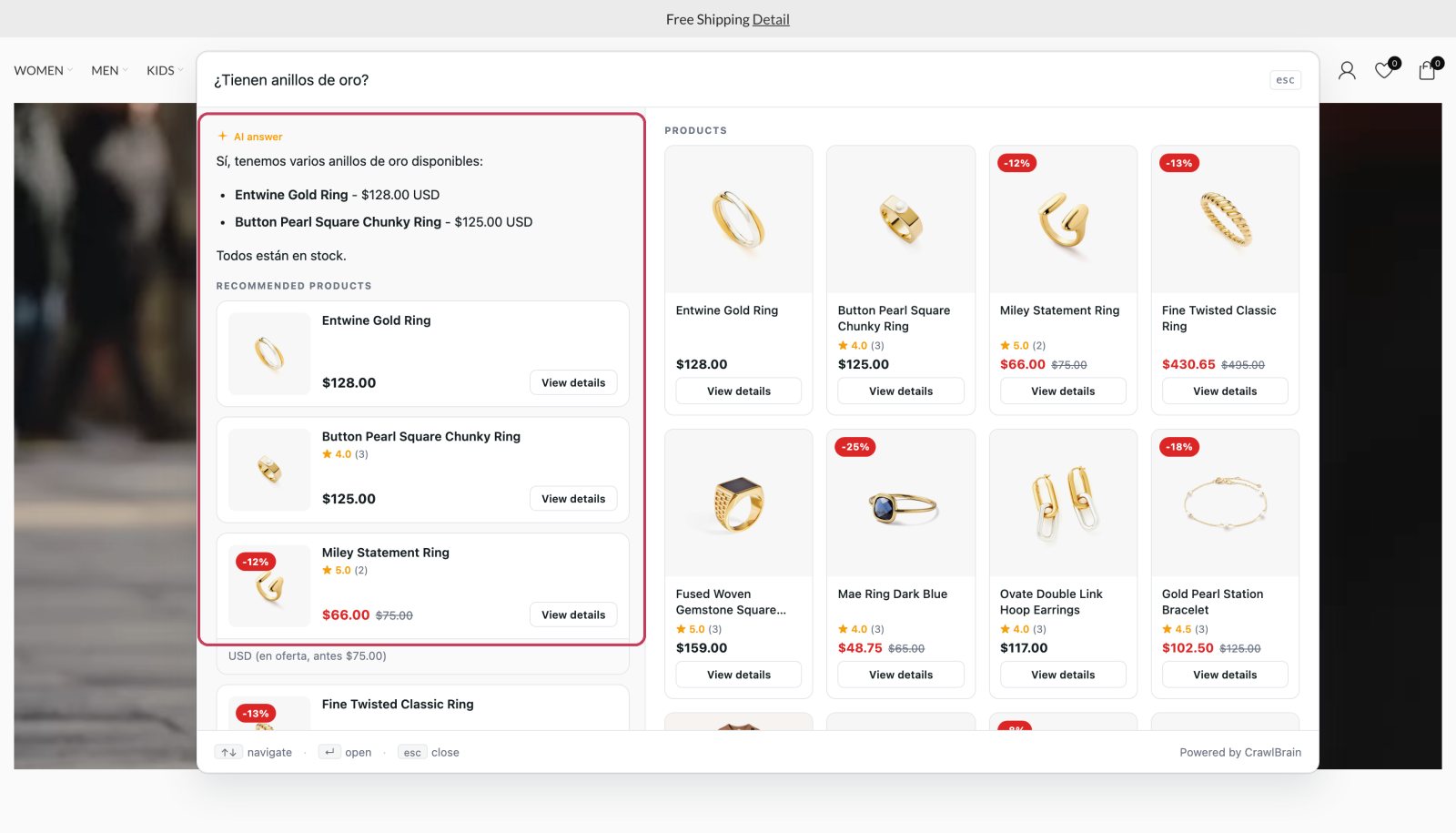
Your content stays exactly as it is, with nothing to translate or maintain. This works in any language a visitor writes in, and it is on by default. The widget's own texts come translated into 20 languages.
Testing before you commit
There are three ways to test, from cheapest to most accurate:
- The preview panel on the Setup page. Colors, fonts, texts.
- Test search on Search Widget → Install. The real widget, real answers, against your real index, without touching your site.
- The browser extension. The real widget on your real site, with a live control panel, and a button to save what you tuned back to your account.
One widget per website
Each website has exactly one widget, created automatically when you add the site. There is nothing to set up and no list to manage.
If you need the same content answering with different colors or in a different position on different pages, you do not need a second widget. Use per-page overrides on the script tag.
Removing the CrawlBrain branding
The Powered by CrawlBrain link in the widget footer can be switched off from the Appearance section with Pro.
On Free it stays on.
Reset to defaults
This option sits at the very bottom of the Setup page and puts every appearance and text setting back to stock, which helps after an evening of experiments. Your content and starter questions are left alone, and so is the script tag already installed on your site.