
Placements
The placement decides where the widget appears on your site, and you set it in the first section of Search Widget → Setup.
The three placements and the Find search field button, in 52 seconds:
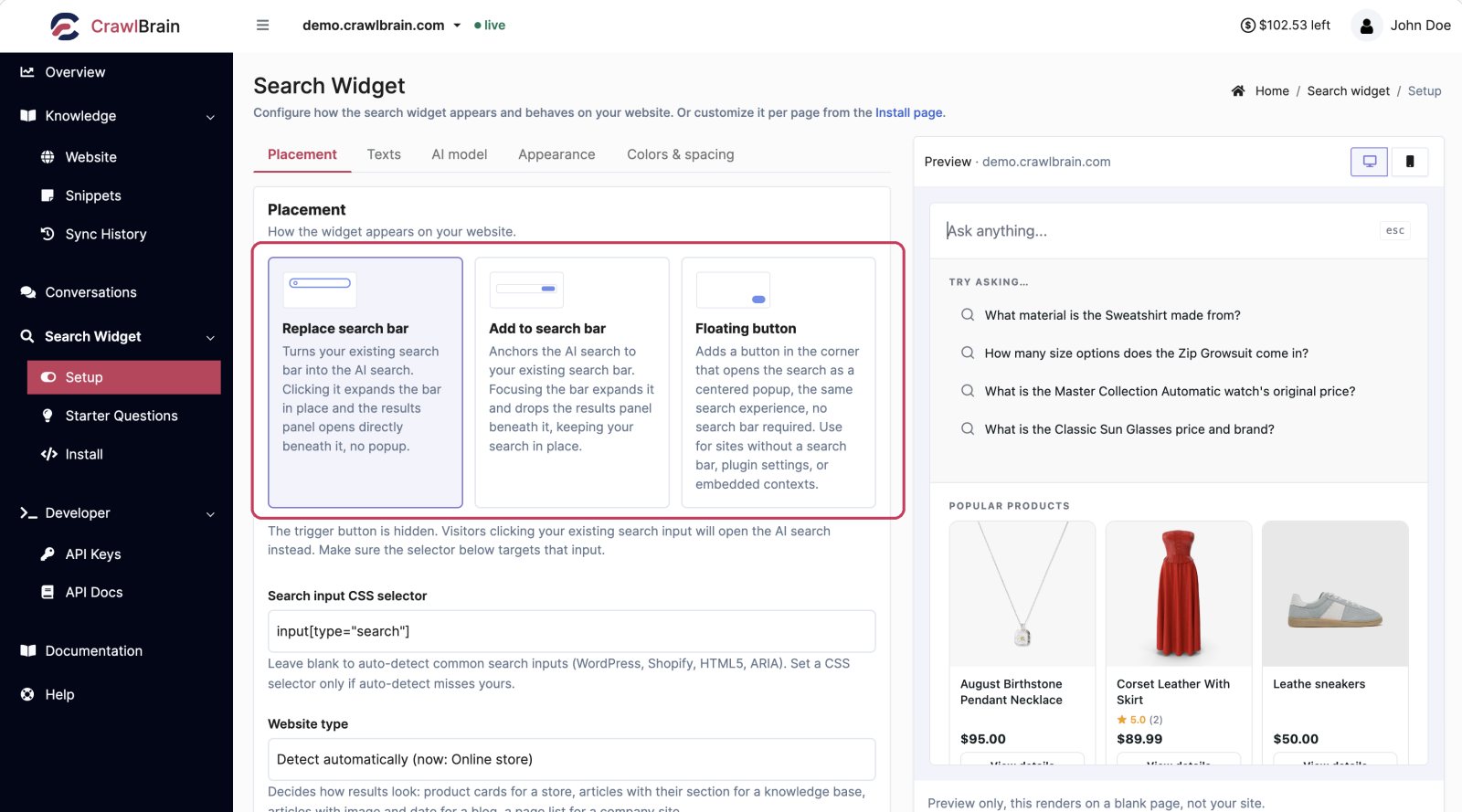
The three options
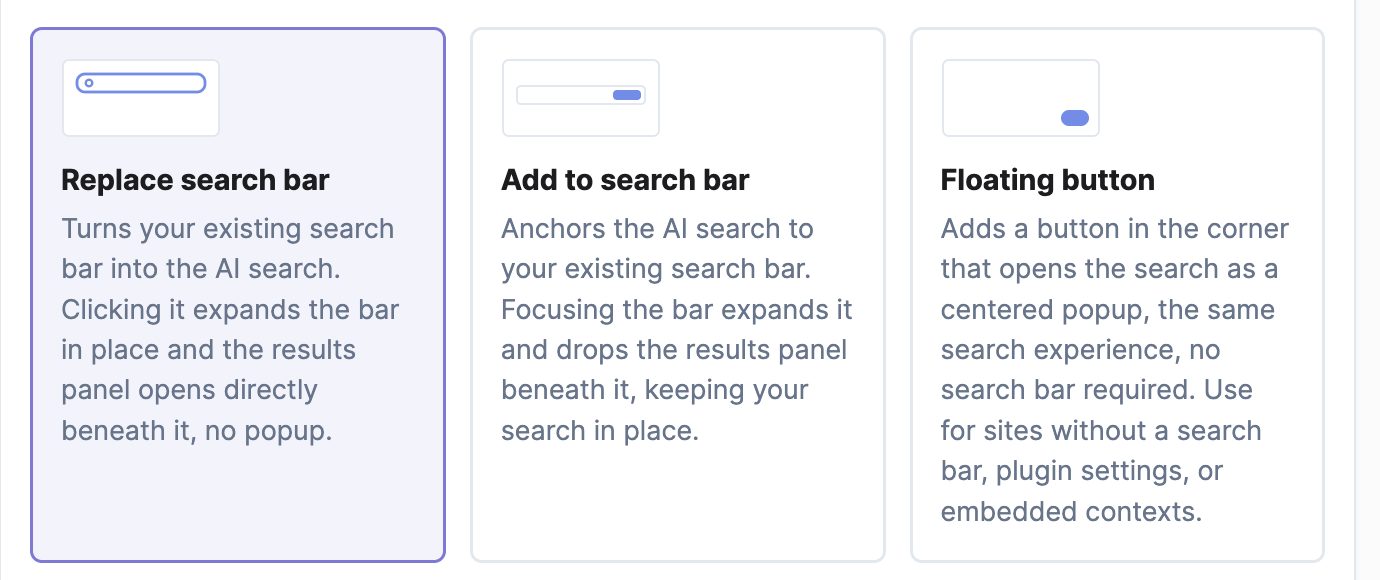
Replace search bar
This option turns your existing search bar into the AI search. Clicking it expands the bar in place, and the results panel opens directly beneath it instead of in a popup.
Your own search input stays where it is and keeps your styling. CrawlBrain takes over what happens when someone uses it.
 The demo store's own search bar, opened in place with starter questions and popular products. No popup, and the visitor never left the page.
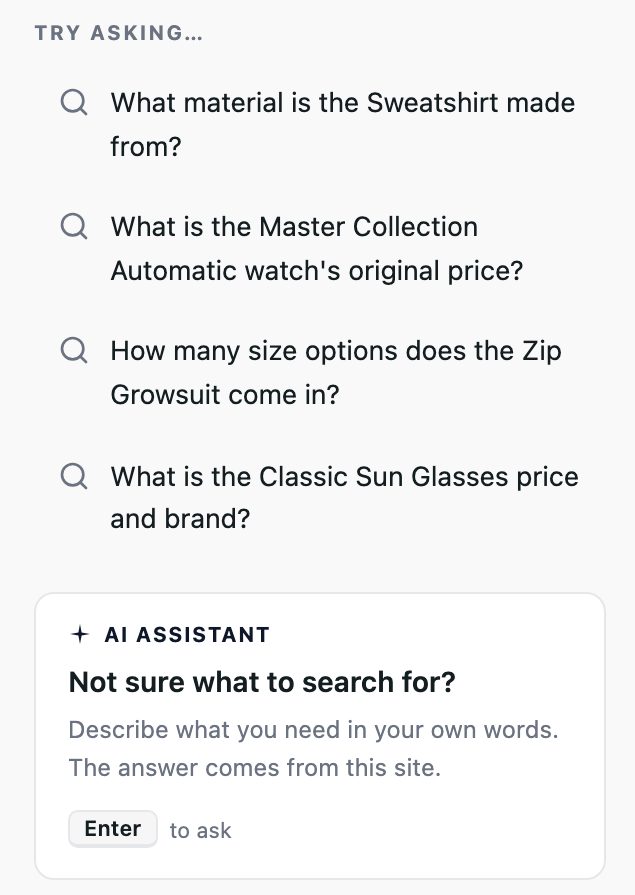
Pick this when you already have a search bar and you want it to get better. This is the right answer for most sites, and it is the one that makes the upgrade feel invisible.
The CrawlBrain trigger button is hidden in this mode. Visitors clicking your existing input open the AI search instead, which means the CSS selector below has to point at the right input.
Add to search bar
The AI search is anchored next to your existing search bar. Focusing the bar expands it and drops the results panel beneath it, keeping your own search working as it always did.
Pick this when you want to keep your existing search exactly as it is and offer AI answers alongside it.
Floating button
A button in the corner opens the search as a centered popup. The search works the same way, and your site needs no search bar for it.
Pick this when your site has no search bar at all, when the widget lives inside a plugin or app settings screen, or when you want it available everywhere regardless of layout.
Choose the corner with Floating position: bottom right or bottom left.
The search input CSS selector
Both search-bar placements need to know which element on your page is the search input.
Leave it blank and CrawlBrain auto-detects it. It recognises the standard search inputs used by WordPress, Shopify, HTML5 type="search", and inputs carrying the right ARIA roles. That covers the large majority of sites.
Set a selector only when auto-detect misses yours.
Finding your selector
- Right-click your search box and choose Inspect.
- Find the
<input>element in the panel that opens. - Build a selector from its id, class, or name.
Common shapes look like this:
#search
input[name="s"]
input[type="search"]
.header-search input
#site-header .search-form input
Prefer an id if the input has one. It is the shortest and least likely to break when you change themes.
If your site has several search boxes
With a header search and a sidebar search, for example, the selector matches the first element it finds, so make it specific enough to pick the one you want:
#masthead input[type="search"]
To attach the widget to more than one, use per-page overrides with a different data-target per template.
Testing the selector
Save, then open your site and click your search box. If the CrawlBrain panel opens, the selector is right.
If nothing happens:
- Open the browser console and run
document.querySelector('YOUR-SELECTOR'). If it returnsnull, the selector does not match anything. - If your search bar is rendered by JavaScript after page load, the widget may look before it exists. Try the floating placement, or a selector on a stable parent element that is present in the initial HTML.
Two more modes, override only
Two placement values are not in the Setup dropdown, because they only make sense per page. Set them on the script tag as data-mode:
| Mode | Effect |
|---|---|
custom |
No built-in button at all. The widget opens only from your own element, via data-trigger-selector |
disabled |
Hides the widget entirely on that page |
custom is the one people ask for most: your own "Ask AI" button and layout stay as they are, and the button opens the CrawlBrain search.
<button id="ask-ai">Ask AI</button>

<script
    src="https://cdn.crawlbrain.com/v1/widget.min.js"
    data-key="YOUR-AGENT-KEY"
    data-mode="custom"
    data-trigger-selector="#ask-ai"
    async
></script>
disabled is how you keep the widget off checkout and account pages, or anywhere else it would get in the way.
The full attribute reference is in Per-Page Overrides.
Spacing
When the trigger sits next to your search bar, small gaps sometimes need nudging. Use the spacing overrides on the script tag instead of fighting your theme's CSS:
data-adjacent-margin-left="12"
data-adjacent-margin-right="12"
data-adjacent-margin-top="-2"
Values are pixels, or any CSS length like 0.5rem. Negative values on the vertical axis nudge upward.
For the floating button, use data-floating-margin-right and data-floating-margin-bottom to clear a cookie banner or a live-chat bubble.