
Shopify
You can add CrawlBrain to a Shopify store with the CrawlBrain app or with a script tag in your theme. Use the app if you can.
| CrawlBrain app | Script tag | |
|---|---|---|
| Setup | Install, connect, switch on | Paste one line in your theme |
| Products and pages | Read from Shopify directly, updated as you edit them | Crawled from your storefront daily |
| Password-protected store | Works | Cannot be read until the password is removed |
| Billing | Through your Shopify invoice | Through CrawlBrain |
The CrawlBrain app
- Install CrawlBrain from the Shopify App Store.
- In the app, click Connect my account. Sign in to CrawlBrain, or create an account. You come back to Shopify connected, and your products, collections, pages and blog articles start importing.
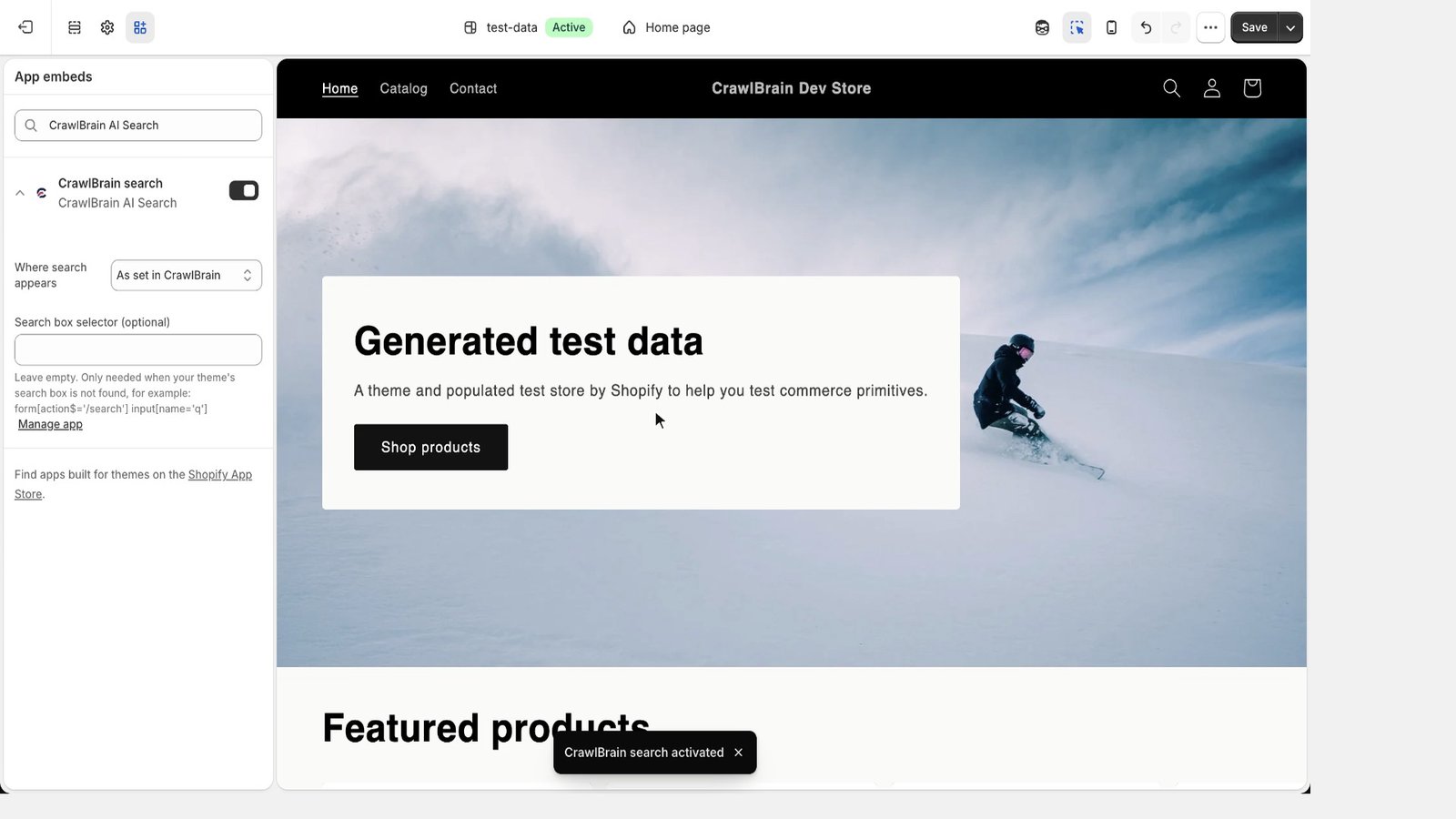
- Click Turn on in theme editor. The theme editor opens with CrawlBrain search switched on under App embeds. Click Save.
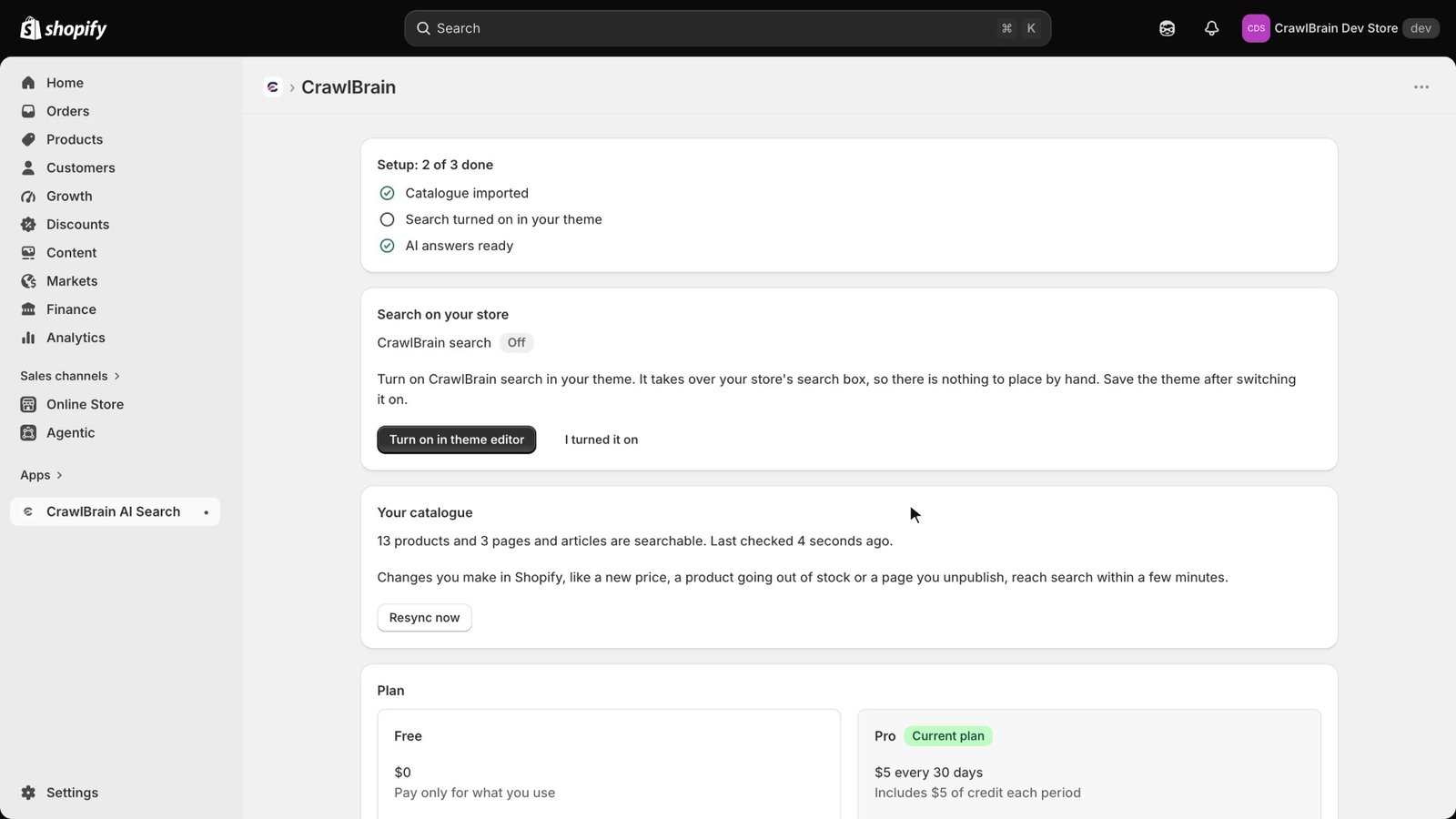
Your store's own search box now opens CrawlBrain. There is nothing to paste and no selector to set.
If the theme editor opens without it switched on, go to Online Store > Themes > Customize and open App embeds in the left sidebar. Switch on CrawlBrain search and click Save.
Edits you make in Shopify reach search on their own, from a new product or a price change to a product set to draft or archived. Draft and archived products never reach shoppers, and neither does anything unpublished.
The script tag
Use the script tag on a store that does not run the app.
- Copy your script from Search Widget > Install > Paste one line in CrawlBrain.
- In Shopify admin, go to Online Store > Themes.
- On your live theme, click the ... button and choose Edit code.
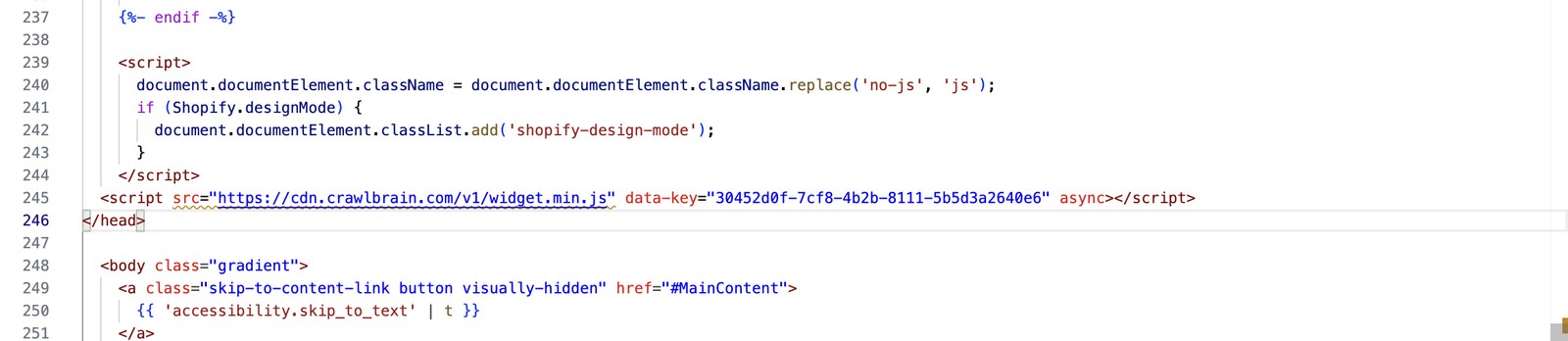
- Open
layout/theme.liquid. - Paste the script on the line just before
</head>, then click Save.
<script src="https://cdn.crawlbrain.com/v1/widget.min.js" data-key="YOUR-AGENT-KEY" async></script>
Then click Check installation on the Install page in CrawlBrain.
Duplicate your theme first (... > Duplicate). If anything goes wrong, publish the copy and you are back where you started.
Use your store's search box
In CrawlBrain, set the placement to Replace search bar in Search Widget > Setup. Leave the CSS selector empty. The search icon, the search drawer and the search page of Shopify themes are recognised on their own, on desktop and on phones.
What to exclude
A crawled store has URLs nobody searches for. Cart and checkout pages are already skipped, and so are account pages and sorted copies of collections. Add this one under Exclude paths in Sync Settings:
/collections/*/products/*
Shopify serves each product at /products/handle and again under every collection it belongs to. Excluding the collection copies keeps one page per product.
The app reads products from Shopify instead of crawling, so none of this applies to it.
Better answers
Most store questions are about shipping and returns, or sizes and care, rather than one product. Make sure those pages are published, and add snippets for anything you keep answering by email.
Short product descriptions give short answers. Two sentences about material and fit do more for search than any setting.
Checkout
The widget does not appear on checkout, because Shopify does not run theme code there.
Removing it
If you use the app, uninstall CrawlBrain under Settings > Apps; with the script tag, delete the line from theme.liquid and save. Either way, the widget is gone on the next page load.