
Other CMS Plugins
Beyond WordPress, CrawlBrain ships plugins for five more platforms. All of them are on Search Widget → Install, under Use our plugin.
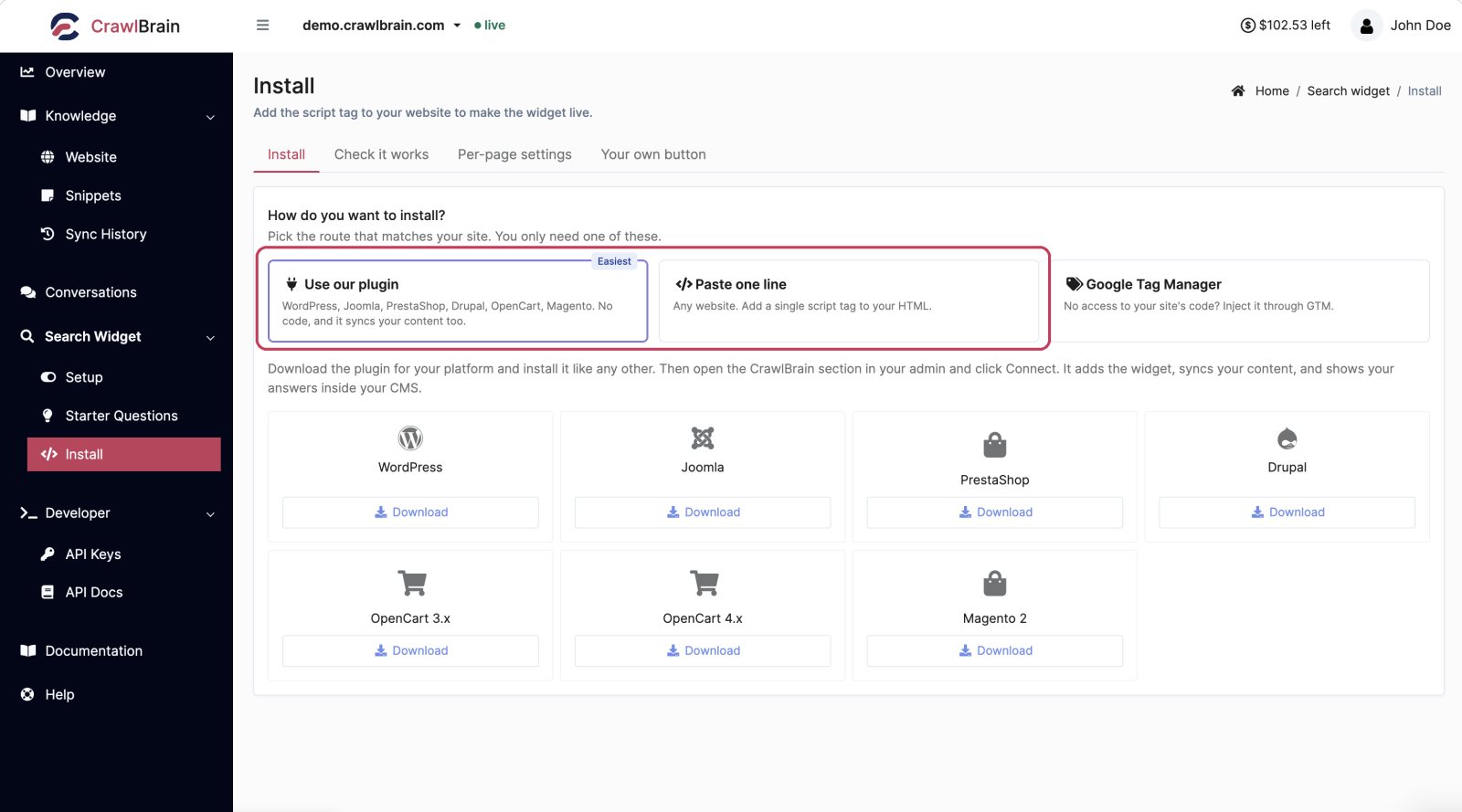
| Platform | Package |
|---|---|
| Joomla | Extension |
| PrestaShop | Module |
| Drupal | Module |
| OpenCart 3.x | Extension |
| OpenCart 4.x | Extension |
| Magento 2 | Module |
WordPress has its own page: WordPress.
The shape of every install
Each platform has its own admin screens, but the install takes the same three steps everywhere.
- Download the package for your platform from the Install page.
- Install it the way your platform installs extensions.
- Open the CrawlBrain section in your admin and click Connect.
Connect opens a CrawlBrain consent screen. Approve it and the site is linked without any keys to copy.
What the plugin adds
- The widget on your storefront or site, without editing a template.
- Content sync, so new pages and products reach CrawlBrain without waiting for the nightly crawl.
- Your answers and questions visible inside your own admin.
Per-platform notes
Joomla
Upload the package in System → Install → Extensions, then enable the plugin. The CrawlBrain settings appear under Components.
PrestaShop
Upload the package in Modules → Module Manager → Upload a module. After install, open the module's configuration and click Connect.
Front-office search inputs in PrestaShop themes are usually input[name="s"] or .ui-autocomplete-input if you need to set the selector manually.
Drupal
Install it like any other contributed module, through the UI or with Composer, then enable it and open the CrawlBrain settings form. Users need the relevant permission to see it.
OpenCart
Pick the package that matches your version. The 3.x and 4.x extension systems are not compatible and the wrong one will not install.
Upload the package in Extensions → Installer, then configure it in Extensions → Modules.
Magento 2
Install the module, then run the usual sequence:
bin/magento module:enable CrawlBrain_Search
bin/magento setup:upgrade
bin/magento cache:flush
Configuration lives under Stores → Configuration.
On a multi-store setup, each storefront that should answer separately needs its own CrawlBrain website, since each has its own content and its own language.
If a plugin fails to install
Use the script tag instead. It works on every platform and takes the same minute.
Copy it from Search Widget → Install, choose Paste one line, and add it to your theme's head template:
<script src="https://cdn.crawlbrain.com/v1/widget.min.js" data-key="YOUR-AGENT-KEY" async></script>
You lose the automatic content sync, which means new content arrives on the nightly crawl rather than immediately. Everything else is identical.
Clear your cache
Every platform on this page caches templates aggressively, so a page you open right after installing may have been rendered before the widget existed, and the install will look like it failed. Flush the cache after installing.